Changelog

Import partnership details from the Stedi Network

You can now create partnerships faster by importing guides from the Stedi Network.

Partnerships contain transaction settings that define the EDI transaction sets you plan to exchange with that trading partner. For each transaction setting, you specify the EDI guide Stedi should use to validate data. The Stedi Network has pre-built guides for hundreds of popular trading partners that you can use in your integrations.

To import a partnership from the Stedi Network, go to the Trading partners page, click Create partnership, and choose Import from network. Visit the partnerships documentation for step-by-step instructions.

If you can't find your partner or guide in the network, you can submit a request, and we'll build it for you for free within 1-2 business days.

Role-based access control for Enterprise plans

Stedi accounts on the Enterprise pricing plan can now use role-based access control (RBAC) to ensure only authorized users can access and modify account resources.

Admins can assign account members to one of four roles:

  • Admin: These users can access and modify all resources within a Stedi account. This includes adding and removing members, assigning member roles, adding billing information, switching between pricing plans, configuring Partnerships, generating EDI files, and configuring resources like Mappings and Functions.

  • Developer: These users can access and configure all resources, such as Partnerships, Mappings, and Functions.

  • Operator: These users can access and configure Partnerships, Guides, and Mappings. They can interact with developer resources like Functions, but cannot modify them. For example, they can invoke existing Stedi functions, but cannot change them or add new functions.

  • Read-only: These users can view account resources, but cannot modify them. For example, they can review processed transactions in Stedi's interface but cannot call the Generate EDI API or edit partnership details.

To change a member's role, go to Settings > Members in your account. Click the pencil icon for a member, choose a Role from the list, and click Update role.

Automatically generate 999s

You can now enable automatic 999 Implementation Acknowledgments for any Stedi partnership.

When you enable 999 acknowledgments for a partnership, Stedi automatically generates a 999 acknowledgment per functionality group of every valid inbound EDI file and delivers the 999s to your trading partner using the specified connection.

You will only use 999 acknowledgments in response to healthcare transactions. It's likely you should use 999s if you receive these transaction sets:

Each generated acknowledgment includes ISA and GS envelopes, complete with auto-incremented control numbers. Visit the partnerships documentation for more details.

Stedi guides EDI Inspector autogenerates envelopes for EDI test files

The EDI Inspector in Stedi guides can now autogenerate an envelope for any sample EDI file.

If the EDI test file in the editor does not contain an envelope, the EDI Inspector displays a Generate envelope button that you can use to instantly create a generic envelope for the transaction set. You can then edit the envelope with information for you and your trading partner.Stedi guides are a machine-readable format for EDI specifications that Stedi uses to translate inbound EDI files and generate outbound EDI files according to your and your trading partners' requirements. You can use the EDI Inspector in each guide to validate EDI test files according to the guide's specifications. You can start from sample files attached to the guide or add your own test file into the editor.Check out the Stedi Network, which includes Stedi guides for hundreds of popular trading partners. You can import any guide into your Stedi account to use in your EDI integrations.

Set max concurrent executions for Stedi Functions

You can now set the maximum number of concurrent executions for any Stedi function to avoid overloading downstream services and ensure that the function can scale up as needed.

Concurrency refers to the number of in-flight requests your function is handling at the same time. With the new concurrency controls, you can set the maximum number of executions that a given function can execute simultaneously. Generally, you would set this to a number that your downstream system can comfortably support.

In addition to limiting the number of concurrent requests, concurrency controls help ensure that you always have available capacity for a given function within your Stedi account. All functions within a Stedi account share an overall concurrency limit that can be raised upon request. When you set a concurrency limit for a specific function, you reserve a part of the overall account "budget" for that function. This approach ensures that you can scale up to the reserved level, even if other functions are experiencing a high load.

To use this feature, go to the Functions UI, click the function you want to edit, and set the Max concurrent executions.

EDIFACT support in EDI Inspector

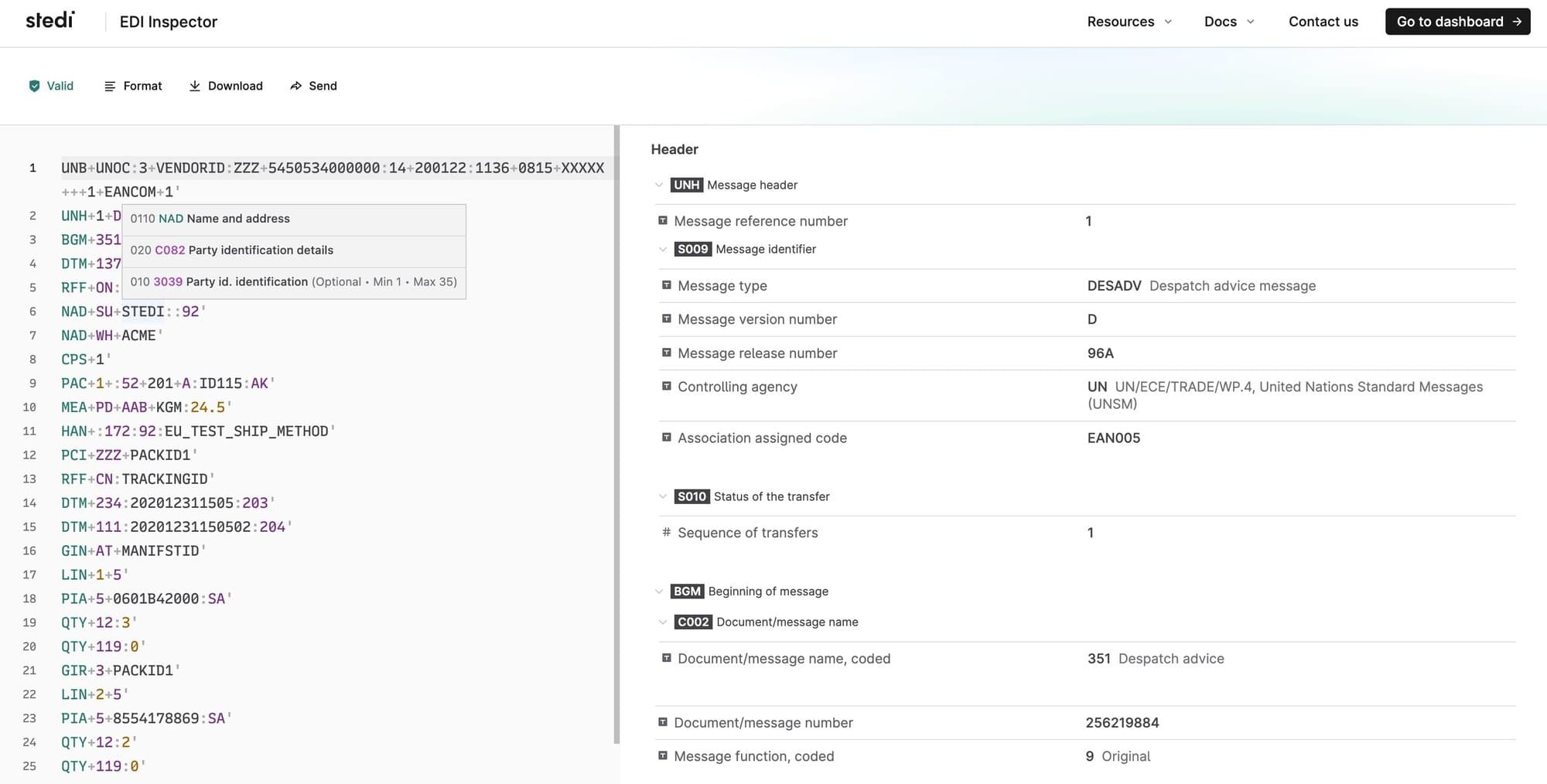
We are excited to announce that our EDI Inspector can now validate EDIFACT EDI files. All EDIFACT releases D96A and later are supported.

The EDI Inspector instantly recognizes any X12 or EDIFACT EDI file and validates its content against the corresponding EDI standard. You can view the transaction data on an easy-to-read UI, and identify and fix errors, such as incorrect codes and formats, missing or misplaced segments, and more.

EDIFACT integration preview: Soon, you'll be able to configure an EDIFACT integration on Stedi to exchange EDIFACT files with your partners. Contact us to get added to the preview launch.

Enable Static IP address for your Remote FTP connections

You can now configure your Remote FTP connections to use a static source IP address when exchanging EDI files with your trading partners.

Enabling a Static IP address ensures that your Remote FTP connections always use the same source IP address when communicating with the remote server. This may be required if one or more of your trading partners need to add your IP address to an allowlist to enable access.

You can enable a static IP address for your Remote FTP connections from the Core settings UI.

Create and send test EDI files from your browser

You can now generate and send test files to your trading partner from your browser.

To send a test EDI file from within a partnership, you can open the menu next to any outbound transaction setting and click Send EDI. You can also access this feature from the File Executions page.Stedi can autogenerate the input transaction payload (JSON) from any sample EDI file in the guide. You can modify this payload or paste your data into the editor. You can send the file from the browser or get the (HTTP) Generate API syntax for that payload. If you send the file, Stedi delivers the outbound test file to the connection, and you can review the results on the File Executions and Transactions pages.

Learn more about configuring new trading partners in our documentation.

Destination webhooks: Automatically send data to external APIs

You can now configure Destination webhooks to send data from Stedi to third-party services without writing any custom code.You can use destinations to send processed transaction data to your internal systems and business applications for further processing. You can also configure webhooks for other Stedi events, such as file processing failures. You can use this approach to trigger alerts in systems like Slack, PagerDuty, or Zendesk for further review.

Stedi can send webhooks to:

  • Custom applications using Basic, OAuth, or API Key authorization

  • Cloud functions, including AWS Lambda, Google Cloud Functions, and Azure Functions

  • iPaaS platforms, such as Zapier, Workato, or Tray.io

  • ERPs like NetSuite, SAP, or Oracle.

Introducing fully-managed Stedi AS2 connections

You can now use Stedi's fully-managed AS2 connections

 to exchange EDI documents with your trading partners.The UI helps you quickly set up and test an AS2 connection for a trading partner. When you enable inbound messages, Stedi automatically processes EDI files received through the connection. When you generate EDI for a partnership

 using the API, Stedi uses the AS2 connection assigned to the transaction to deliver the document to the trading partner. You can review the delivery status of all your sent EDI files on the file executions page.