Changelog

Claim edit: Invalid provider UPIN format

Stedi now rejects 837P professional, 837D dental, and 837I institutional claims that include a Unique Physician Identification Number (UPIN) in an invalid format.

What is a UPIN?

A Unique Physician Identification Number (UPIN) is a legacy identifier previously assigned to providers by the Centers for Medicare & Medicaid Services (CMS).

UPINs were replaced by National Provider Identifiers (NPIs) in 2007. Some payers, including certain state Medicaid payers, still accept a UPIN as an alternate provider identifier. Payers may also populate the UPIN in secondary or tertiary claims they generate for coordination of benefits (COB).

How the edit works

When you submit a claim, you can specify a UPIN for any provider listed on the claim, such as the rendering provider or supervising provider.

All valid UPINs are exactly six characters in one of two layouts:

  • One letter followed by five digits, like A12345 (X99999)

  • Three letters followed by three digits, like ABC123 (XXX999)

If a claim includes a UPIN with an invalid format, the payer may reject the claim.

This edit catches the issue before the claim reaches the payer. It prevents payer rejections, which take longer to resolve and delay payment for the provider.

Rejection errors

If you submit a claim using Stedi's Claim Submission API endpoints and the claim fails the edit, you'll get back an error response in real time. The response includes details in the errors array:

{
  "errors": [
    {
      "code": "33",
      "description": "Invalid Provider UPIN Number. UPINs must follow one of these formats: X99999 (one letter followed by five digits) or XXX999 (three letters followed by three digits). The submitted value '123456789' does not match either format. Correct and resubmit.",
      "followupAction": "Please Correct and Resubmit"
    }
  ]
}

If you submit a claim using SFTP and the claim fails the edit, Stedi will reject the claim with a 277CA claim acknowledgment. The acknowledgment will include a related claim status category code, claim status code, entity identifier code, and error message:

STC*A7>133>DN*[DATE]*U*[AMOUNT]********Invalid Provider UPIN Number. UPINs must follow one of these formats: X99999 (one letter followed by five digits) or XXX999 (three letters followed by three digits). The submitted value '123456789' does not match either format. Correct and resubmit.~
Claim edit: Missing total claim charge amount

Stedi now rejects 837P professional, 837D dental, and 837I institutional claims that are missing the total claim charge amount.

What is the total claim charge amount?

The total claim charge amount is the full dollar amount billed by the provider for a claim, before adjustments or payments.

The total claim charge amount should equal the sum of the individual service line charges. Payers use it to balance a claim by checking its math.

Total claim charge amount

Claim typeJSON API fieldX12 element
837P professionalclaimInformation.claimChargeAmountCLM-02 (Total Claim Charge Amount) of Loop 2300 (Claim Information)
837D dentalclaimInformation.claimChargeAmountCLM-02 (Total Claim Charge Amount) of Loop 2300 (Claim Information)
837I institutionalclaimInformation.claimChargeAmountCLM-02 (Total Claim Charge Amount) of Loop 2300 (Claim Information)

How the edit works

When the total claim charge amount is missing, the payer may reject the claim.

This edit catches the issue before the claim reaches the payer. It prevents payer rejections, which take longer to resolve and delay payment for the provider.

Rejection errors

If you submit a claim using Stedi's Claim Submission API endpoints and the claim fails the edit, you'll get back an error response in real time. The response includes details in the errors array:

{
  "errors": [
    {
      "code": "33",
      "description": "Missing Claim Charge Amount. The total claim charge is required on all claims. Correct and resubmit.",
      "followupAction": "Please Correct and Resubmit"
    }
  ]
}

If you submit a claim using SFTP and the claim fails the edit, Stedi will reject the claim with a 277CA claim acknowledgment. The acknowledgment will include a related claim status category code, claim status code, and error message:

STC*A6>178*[DATE]*U*[AMOUNT]********Missing Claim Charge Amount. The total claim charge is required on all claims. Correct and resubmit.~

Related claim edits

Stedi has another edit that validates the total claim charge amount. See Total claim charges must equal line-level charges.

Introducing a read-only CMS-1500 view for professional claims in the Stedi portal

When you open a professional claim from the Stedi portal’s claims view, details are now shown in a read-only layout that mirrors the CMS-1500 form, also called the HCFA, the standard paper form for professional claims.

CMS-1500 claim view in the Stedi portal

If you use the Stedi portal’s CMS-1500 form to submit professional claims, you can now view a claim in the same form you used to submit it. Previously, the Stedi portal rendered professional claims in a Stedi-specific layout that didn't resemble the submission form.

You can also correct and resubmit a claim from the CMS-1500 claim view. Click Edit and resubmit and select CMS-1500 resubmission. This opens the claim in the editable CMS-1500 form, where you can update and resubmit it.

This change applies to professional claims only. Dental and institutional claims viewed in the Stedi portal still use their existing layouts.

Unmapped X12 paths

Stedi transmits all claims to payers as HIPAA-compliant X12. If you submit professional claims using our JSON APIs or the CMS-1500 form, we handle the translation to X12 for you.

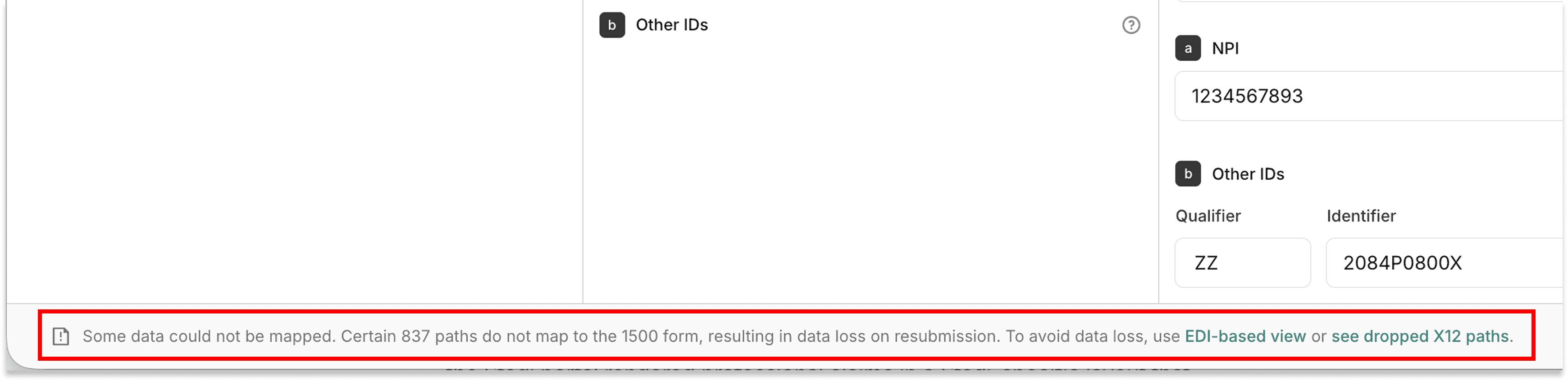
Certain X12 paths don’t map cleanly to the CMS-1500 form and aren’t rendered in the new view. Instead, you can view unmapped X12 paths from the bottom of the CMS-1500 claim view, alongside a link to the EDI tab for the raw 837.

Unmapped X12 paths in the CMS-1500 claim view

Submit raw X12 claims in the Stedi portal's claims view

You can now submit claims as raw 837 X12 EDI files in the Stedi portal’s claims view.

Previously, you could only submit raw X12 claims in the Stedi portal using the transactions view. We're retiring the transactions view’s raw X12 claim submission flow with this change.

How to submit a raw X12 claim in the Stedi portal

To upload a raw X12 claim from the claims view, click Submit claim, select Upload raw X12 file, and add your .edi file.

You can also select an X12 implementation guide, such as 837P Professional Claim (X222A1) or 837D Dental Claim (X224A2), and paste in your X12.

Click Submit claim when you’re ready to submit.

The editor validates the file against the implementation guide’s spec and flags structural errors. You can fix these errors before submitting.

Error in the Stedi portal's EDI editor

Submit multiple claims in one file

A single 837 X12 file can contain multiple claims, as long as they’re the same claim type – 837P professional claim, 837I institutional claim, or 837D dental claim – and use the same X12 implementation guide.

For guidance, see:

Claim edits

The Stedi portal’s EDI editor only checks a claim’s X12 structure. Stedi also runs claim edits after you submit a claim to catch other errors that could lead to a payer rejection.

If you submit a claim as raw X12 in the Stedi portal’s claims view, these edits run asynchronously. If the claim fails an edit, Stedi will reject the claim with a 277CA claim acknowledgment after submission.

Availability

All Stedi production accounts can submit claims as raw X12 in the Stedi portal’s claims view.

Introducing pay-as-you-go pricing

We're introducing a new pay-as-you-go pricing plan. With the new pay-as-you-go plan, you get a full production account (including API and SFTP access) and only pay for the transactions you use, with automatic volume discounts and no monthly minimums, setup fees, or per-provider/location fees.

Previously, API and SFTP access was only available with a $500 monthly minimum plan. That minimum priced out startups, practices, and solo developers who wanted to move from prototype to production without a commitment.

Existing Stedi accounts stay on their current pricing plans by default and can switch to a pay-as-you-go or custom plan at any time by contacting Stedi support.

How pay-as-you-go pricing works

The pay-as-you-go plan uses tiered pricing. For most transactions, the per-transaction rate drops as your monthly volume grows.

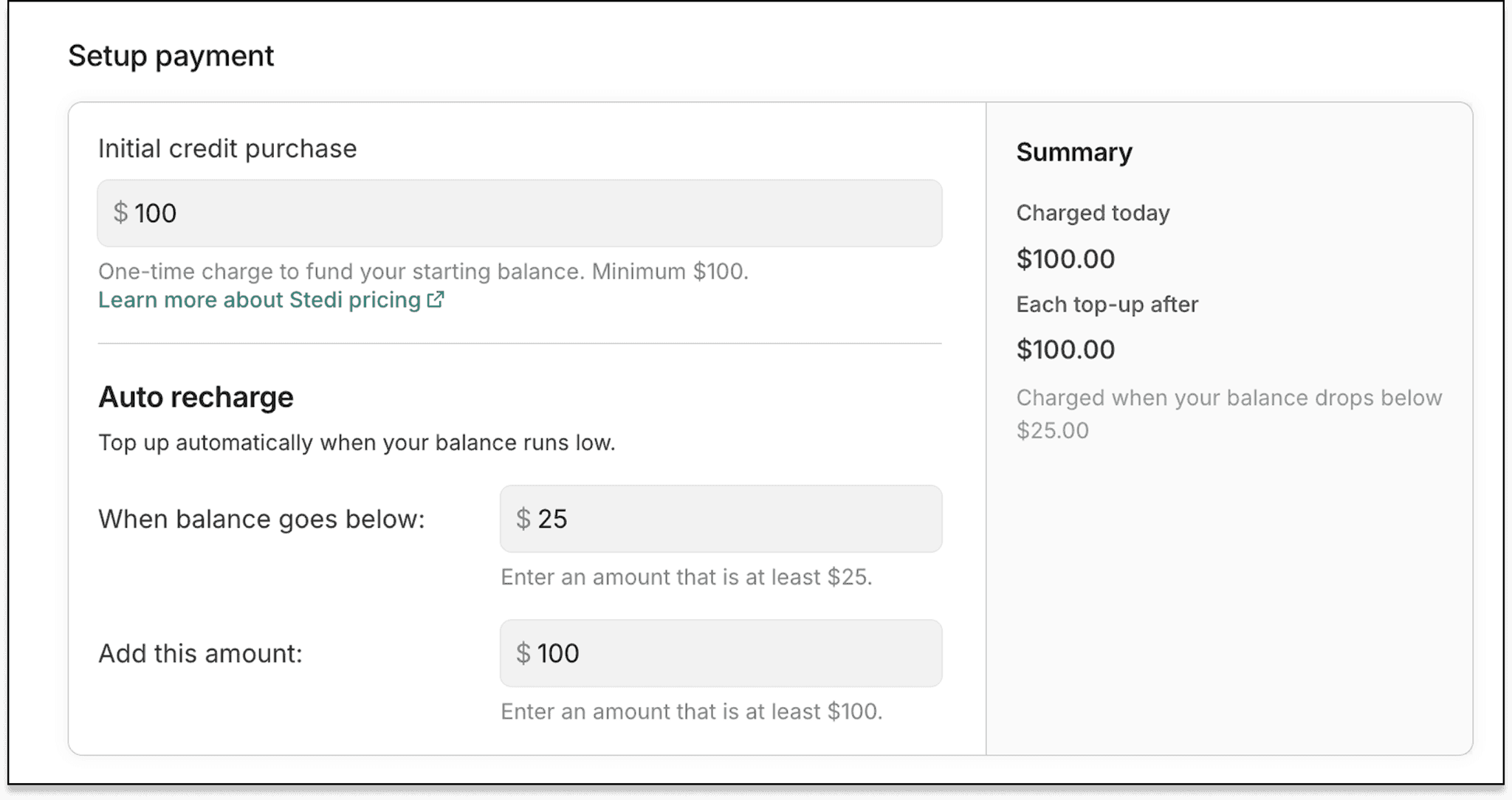
When you sign up for the pay-as-you-go plan, you add a credit card and fund an initial Stedi account balance, starting at $100.

Each transaction draws down the balance at the rate for its pricing tier. See our pricing page for an estimator and full breakdown of each tier.

Stedi automatically tops up your balance when it drops below a trigger you set. For example, you can top up your balance to $100 whenever it falls below $25, the minimum trigger.

Auto recharge

Your balance rolls forward month to month. At the end of each month, Stedi sends an invoice that covers your monthly usage. If you send zero transactions in a month, you pay nothing.

For more details, see our announcement blog.

Test ERAs now support professional claims without an NPI

Stedi's test claims workflow now returns a test Electronic Remittance Advice (ERA) for professional claims without the billing provider’s National Provider Identifier (NPI).

The test claims workflow lets you submit a test claim to the Stedi Test Payer and get a test ERA in response. You can use the workflow to do end-to-end validation and build integration tests.

Atypical providers – providers without an NPI – sometimes submit professional claims using a commercial number or location number.

Previously, the test claims workflow required the billing provider’s NPI in the submitted claim to generate and return a test ERA. Now, the test ERA uses the billing provider's tax ID instead.

Submitting the test claim

To generate a test ERA without the billing provider’s NPI, include the billing provider’s tax ID and a state license number when submitting the test professional claim to the Stedi Test Payer.

Field837P Claims Submission JSON API fieldX12 element
Tax IDbilling.employerIdREF02 of Loop 2010AA (Billing Provider Name), where REF01 = ”EI” (Employer's Identification Number)
State license numberbilling.stateLicenseNumberREF02 of Loop 2010AA (Billing Provider Name), where REF01 = ”0B” (State License Number)

Receiving the test ERA

The test ERA identifies the payee by tax ID and returns the state license number from the original claim.

Field835 ERA Report API fieldX12 element
Tax IDpayee.federalTaxPayersIdentificationNumberN104 of Loop 1000B (Payee Identification), where N103 = ”FI” (Federal Tax ID)
State license numbertransactions[].payee.stateLicenseNumberREF02 of Loop 1000B (Payee Identification), where REF01 = ”0B” (State License Number)

For example, an ERA retrieved using the 835 ERA Report endpoint:

{
  "transactions": [
    {
      "payee": {
        "name": "Test Provider",
        "taxId": "123456789", // Billing provider's tax ID
        "stateLicenseNumber": "LIC987654", // Billing provider's state license, if submitted
        ...
      },
      ...
    }
  ]
}

For more information, see our Test claims workflow docs.

Claim edit: Invalid diagnosis-related group code format

Stedi now rejects 837I institutional claims with a diagnosis-related group (DRG) code that isn't three or four numeric digits.

Diagnosis-related group codes

In institutional claims, a diagnosis-related group (DRG) code groups inpatient hospital stays into categories expected to consume similar resources. DRG 470 covers inpatient hip or knee replacements without complications.

Payers use DRG codes to determine fixed reimbursement rates under DRG-based contracts with providers. Medicare inpatient hospital reimbursement is the most common use case, though Medicaid and some commercial plans use different DRG systems. DRG codes are only required if the provider's payer contract uses DRG reimbursement.

Diagnosis-related group code (DRG)

Claim typeJSON API fieldX12 element
837I institutionalclaimInformation.diagnosisRelatedGroupInformation.drugRelatedGroupCodeHI01-02 (Industry Code) of Loop 2300 (Claim Information) where HI01-01 = DR (Diagnosis-related group)

How the edit works

X12 standards require all valid DRG codes to be three or four numeric digits. If a claim’s DRG code is a different length or contains a non-numeric character, the payer may reject the claim.

This edit catches the issue before the claim reaches the payer. It prevents payer rejections, which take longer to resolve and delay payment for the provider.

Rejection errors

If you submit a claim using Stedi's Claim Submission API endpoints and the claim fails the edit, you'll get back an error response in real time. The response includes details in the errors array:

{
  "errors": [
    {
      "code": "33",
      "description": "Invalid Diagnosis Related Group (DRG) code. When entered, the DRG code must be three or four numerics and a valid code. The submitted code, 47A, is invalid. Correct and resubmit.",
      "followupAction": "Please Correct and Resubmit"
    }
  ]
}

If you submit a claim using SFTP and the claim fails the edit, Stedi will reject the claim with a 277CA claim acknowledgment. The acknowledgment will include a related claim status category code, claim status code, and error message:

STC*A7>256*[DATE]*U*[AMOUNT]********Invalid Diagnosis Related Group (DRG) code. When entered, the DRG code must be three or four numerics and a valid code. The submitted code, 47A, is invalid. Correct and resubmit.~

Claim edit: Missing address line 1 when line 2 is present

Stedi now rejects 837P professional, 837D dental, and 837I institutional claims that include an address with line 2 populated but line 1 missing or blank.

How the edit works

Every address in a healthcare claim can contain two lines:

  • Line 1 is the primary street address (e.g. 123 Main St).

  • Line 2 is a secondary line such as a suite, apartment, or floor (e.g. Suite 100).

X12 standards require that addresses with a populated line 2 also have a populated line 1. If any address on the claim has line 2 populated but a missing or blank line 1, the payer may reject the claim.

This edit catches the issue before the claim reaches the payer. It prevents payer rejections, which take longer to resolve and delay payment for the provider.

Rejection errors

If you submit a claim using Stedi's Claim Submission API endpoints and the claim fails the edit, you'll get back an error response in real time. The response includes details in the errors array.

The error description names the specific entity whose address failed the check. For example, Billing Provider, Subscriber, or Service Facility.

{
  "errors": [
    {
      "code": "33",
      "description": "Missing Address line. When submitting address lines, line 1 is required when line 2 is present. Submitted Billing Provider address includes a line 2 but missing the line 1 address. Correct and resubmit.",
      "followupAction": "Please Correct and Resubmit"
    }
  ]
}

If you submit a claim using SFTP and the claim fails the edit, Stedi will reject the claim with a 277CA claim acknowledgment. The acknowledgment will include a related claim status category code, claim status code, entity identifier code, and error message:

STC*A6>503>85*[DATE]*U*[AMOUNT]******A8>732**Missing Address line. When submitting address lines, line 1 is required when line 2 is present. Submitted Billing Provider address includes a line 2 but missing the line 1 address. Correct and resubmit.~

Claim edit: State and province codes must be two characters

Stedi now rejects 837P professional, 837D dental, and 837I institutional claims that include a state or province code that is not exactly two characters.

How the edit works

X12 standards require claims to use a 2-character state or province code for any address in the U.S. or Canada:

If a state or province code is not exactly two characters, the payer may reject the claim.

This edit catches the issue before the claim reaches the payer. It prevents payer rejections, which take longer to resolve and delay payment for the provider.

Important: X12 standards only require state and province codes for addresses in the U.S. and Canada. Claims that omit a state or province code are unaffected by this edit.

Rejection errors

If you submit a claim using Stedi's Claim Submission API endpoints and the claim fails the edit, you'll get back an error response in real time. The response includes details in the errors array:

If you submit a claim using SFTP and the claim fails the edit, Stedi will reject the claim with a 277CA claim acknowledgment. The acknowledgment will include a related claim status category code, claim status code, entity identifier code, and error message:

Introducing CMS-1500 Claim Form PDF downloads in the Stedi portal's claims view

You can now download CMS-1500 Claim Form PDFs for professional claims from the Stedi portal’s claims view.

Previously, manual downloads were only available from a claim's transaction details page.

You can use the PDFs to export submitted claims for record keeping, physically mail a claim to a payer, or review claim information in a familiar format.

When you download the PDF, you can choose whether to include the CMS-1500 form background or omit it to print claim data onto pre-printed forms.

For API access, you can continue to use the CMS-1500 PDF: Business Identifier or CMS-1500 PDF: Transaction ID endpoints. For more information, see our CMS-1500 Claim Form PDF docs.