Changelog

Import guides when creating transaction settings

You can now import your trading partner’s EDI guides directly from the Stedi Network when creating transaction settings. The Stedi Network has pre-built guides for hundreds of popular trading partners that you can use in your integration for free.

Stedi guides are a machine-readable version of the EDI requirements – sometimes called implementation guides – that your partner would typically provide as PDF, CSV, or Word documents. When you add a guide to a transaction setting, Stedi validates and translates (inbound files) or generates (outbound files) EDI according to the guide’s requirements. 

Request guides: If you don’t see your partner’s guides in the Stedi Network, submit a request and we’ll build the guides you need for free in 1-2 business days.

Test your mapping for multiple use cases

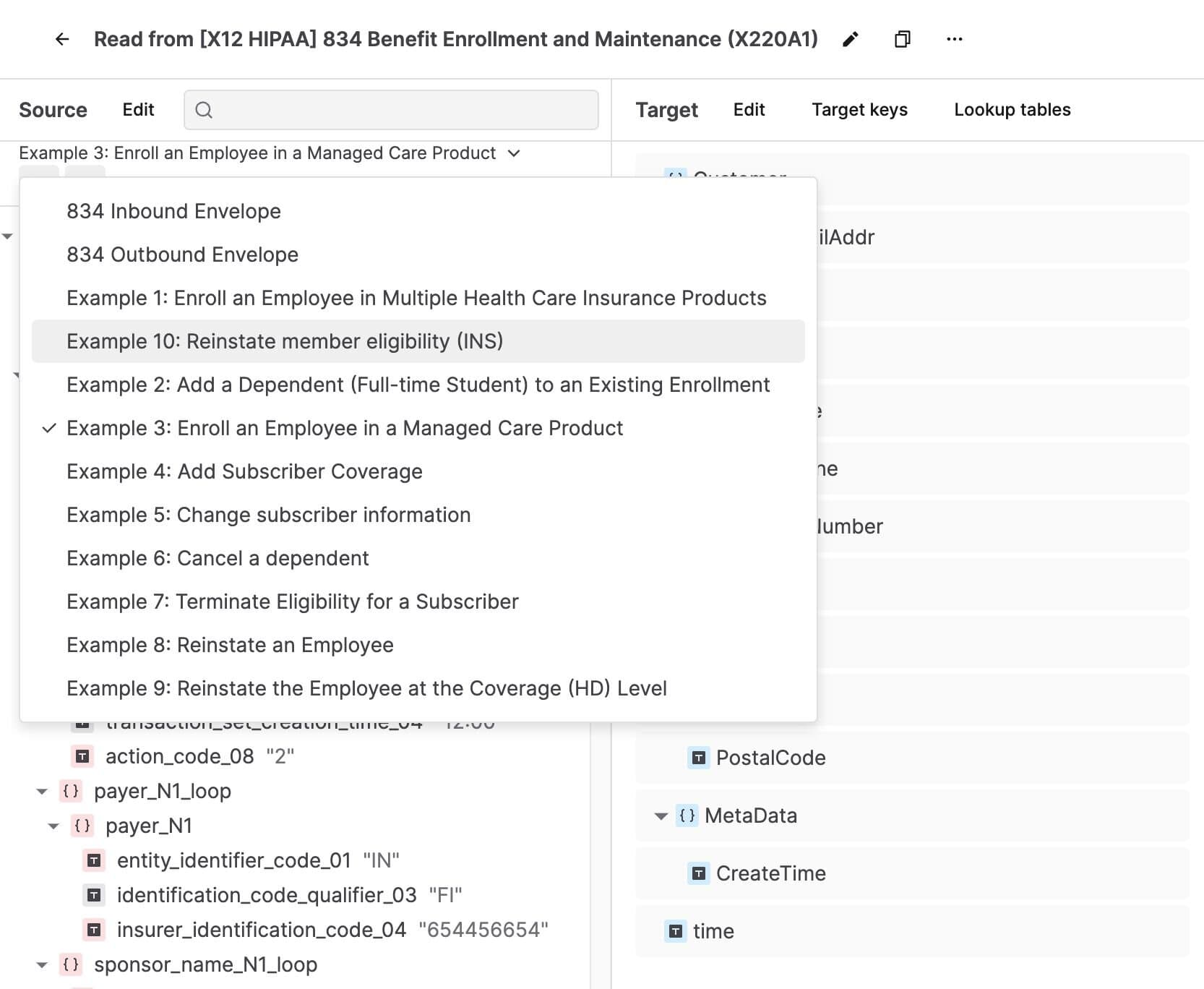
When building a Stedi mapping for reading EDI, you can now switch between the sample files attached to the source guide. Sample files typically represent the use cases when you could receive that transaction set from your trading partner. For example, the X12 HIPAA 834 Benefit Enrollment and Maintenance guide includes samples for adding subscriber coverage, canceling a dependent, changing subscriber information, and more.

As you switch between samples, Mappings dynamically updates the source JSON shape and the expected mapping results, so you can ensure your mapping works for each use case. 

The Mappings module is a powerful JSON-to-JSON transformation engine that helps you transform Guide JSON into and out of the shape you need for your business system. You can use Stedi’s visual mapper to build mappings for both inbound and outbound transactions.

Trigger Destination webhooks based on connection and data mode

You can now configure transaction.processed.v2 event bindings to trigger a Destination webhook based on the following new filters:

  • Connection: Inbound files from a specific connection. This option is useful when there are multiple connections within the same partnership. For example, you may set up a separate SFTP connection for test files and route them to a test endpoint.

  • Mode: The transaction contains a specific value in the ISA-15 element, which is used in X12 to distinguish between test and production files. This option is useful when you want to send test and production data to separate endpoints.

Destination webhooks allow you to automatically send data and events from Stedi to any external API. You can configure one or more event bindings that conditionally trigger each webhook. The new Connection and Mode filters are available under the Advanced menu.

Retrieve generated EDI files from Stedi's API

You can now programmatically retrieve the generated EDI files that Stedi has delivered to your trading partner.

Stedi emits a file.delivered.v2 event every time a file is successfully delivered to a connection for an outbound transaction set. These events now include an output URL in an event.detail.artifacts object. You can use this URL to fetch the generated EDI file, including its envelope information.

Support for Remote FTP and FTPS connections

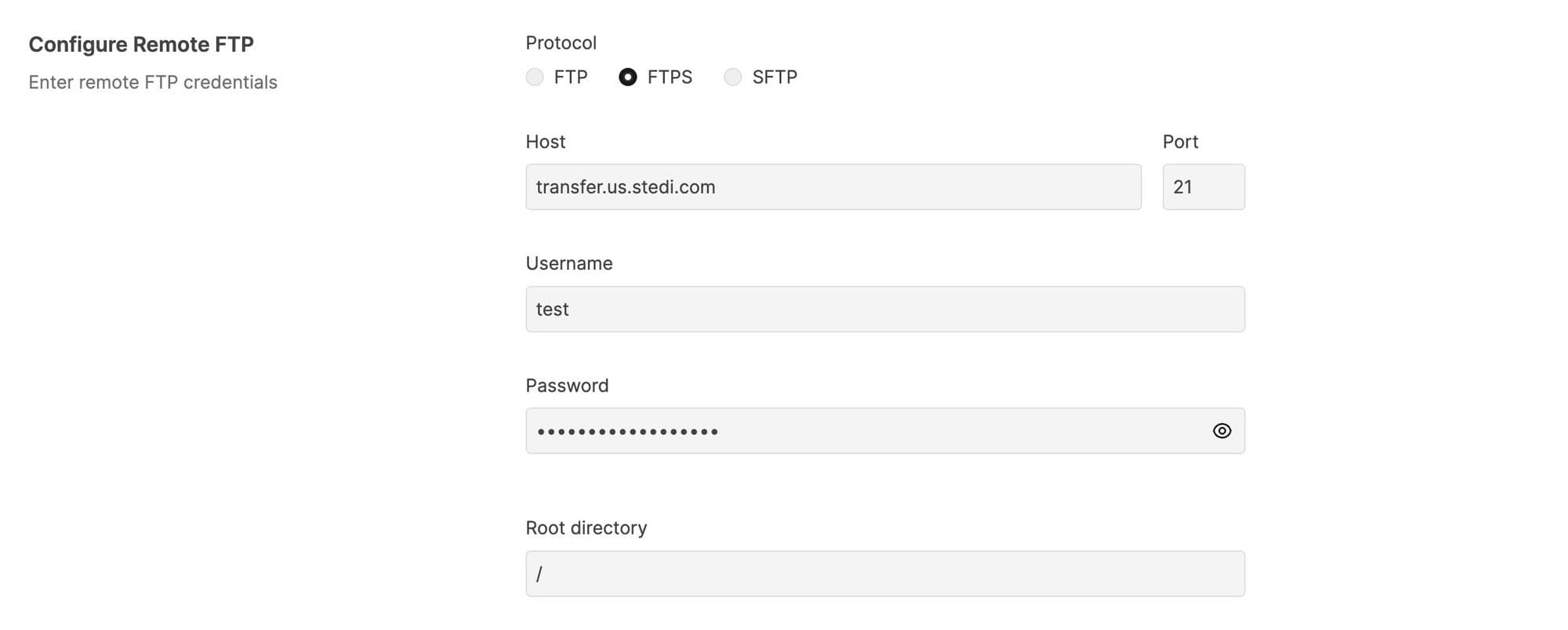
You can now configure Remote FTP and FTPS connections in the Stedi app. 

For each partnership configuration in your Stedi account, you can set up one or more connection protocols to exchange files. When connecting to your partner’s remote server, you can choose between the FTP, FTPS, and SFTP protocols.

Send transformed file processed events to your API

You can now use Mappings to automatically transform file.processed.v2 events into a custom JSON shape. You can then attach the mapping to a Destination webhook to automatically forward transformed event data to your API.

For every successful file execution, Stedi emits a file.processed.v2 event that includes information about when Stedi processed the file, the associated partnership configuration, the file size, and more.

Visit the Events documentation for complete details.

Create Stedi mappings faster

Stedi Mappings is our powerful JSON-to-JSON transformation engine. We recently made the following major improvements to the visual mapping tool:

  • The visual mapper now shows warnings when the expected mapping output does not match the target JSON Schema. These warnings highlight issues such as invalid value types and missing properties to help you more easily create a complete, accurate mapping.

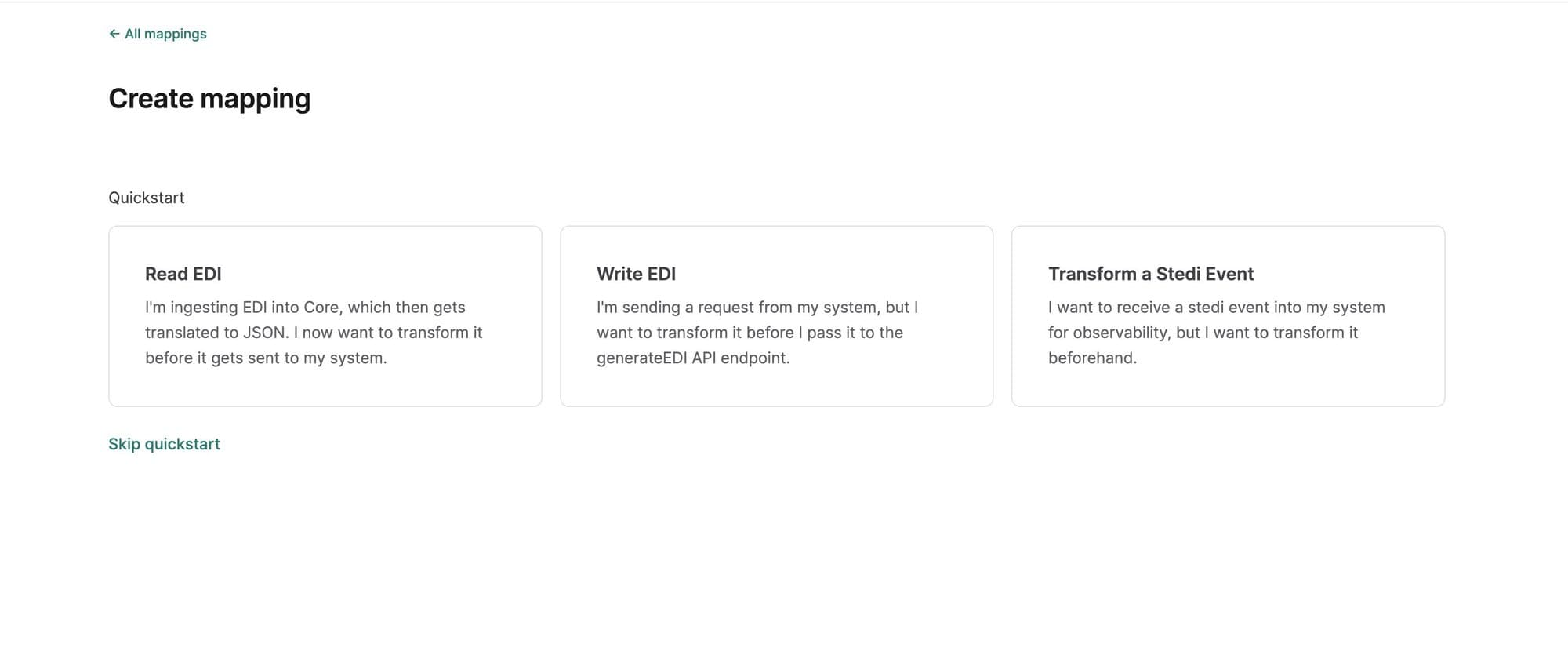
  • We added a quickstart workflow that makes it easier to create new mappings. You can choose a quickstart for reading EDI (mapping transactions from Stedi to a custom shape for your API), writing EDI (mapping JSON from your system to the shape required for Stedi’s Generate API), and ingesting Stedi events (for example, mapping `file.failed.v2` events to a custom shape).

  • To help you keep mappings up-to-date, we added clearer notifications when a connected Stedi guide has changed (for example, it has new segments or elements) and provided instructions for pulling those changes into your mapping.

Customize the filename for autogenerated acknowledgments

You can now set a custom filename for autogenerated acknowledgments to comply with your trading partner’s requirements.

Stedi can automatically generate a 997 Functional Acknowledgment or a 999 Implementation Acknowledgment for each inbound transaction and deliver it to a specified connection.

To set a custom filename, navigate to the partnership, turn on the Acknowledgments functionality, and enter a JSONata expression into the Filename expression field. For example, the expression "EDI997_" & $millis()would produce filenames that start with EDI997 and then contain a timestamp, such as EDI997-5182341242.edi.

View Destination webhook logs

You can now view detailed logs for each Destination webhook and filter them by a specific date range. The logs provide details about how the webhook is functioning, such as when each webhook is triggered and the response from the configured endpoint, which can help you troubleshoot issues. 

Destination webhooks allow you to send transaction data and events from Stedi to any external API. To view the logs for a destination, click its name to go to its details page, and then navigate to the Logs tab.

Filter inbound files from Remote SFTP/FTPS connections

You can now specify a regex expression for Stedi to use when retrieving files from a Remote SFTP/FTPS connection. When polling the remote server, Stedi only processes files that match the filter pattern.

For example, your trading partner may place files for multiple different entities on the remote server, with different prefixes for each entity. In this case, you could write a regex expression that matches only files with a given prefix.

You can specify a Filter pattern for the remote poller in the connection’s Inbound settings.