Introducing claims management features for the Stedi portal

Products

We’ve released a dedicated set of claims management features in the Stedi portal, including an improved claims view.

Claims view

Previously, the Stedi portal had a ‘flat’ transactions view for claims and acknowledgments. Transactions weren't filterable, and the list view didn’t include details such as the payer name/ID, patient control number, and billing provider information. You had to click into each transaction to see details of the claim or relationships between claims and acknowledgments.

The new claims view is built around the claim itself. You can see where each claim stands, review its history, and filter across your entire claims volume. Features include:

  • A filterable list of all claims submitted through Stedi

  • The ability to see the current status of a claim

  • A timeline for each claim showing 837 claim submissions and related 277CA claim acknowledgments

  • Detail pages for each claim submission and acknowledgment transaction

Filter claims

The claims view lets you filter claims you've submitted through Stedi. You can filter based on:

  • Status – where the claim is in the processing pipeline

  • Patient name with partial matching

  • Patient control number

  • Payer name, ID, or payer ID alias

  • Billing provider NPI or TIN

  • Total charges, including the minimum or maximum charge amount

  • Service date and processed date ranges

  • Claim type – professional, dental, or institutional

Claims view with filters

Claim processing status

Each claim displays its current processing status, based on 277CA claim acknowledgments.

Claim processing statuses

Statuses include:

  • Submitted – The claim was submitted to Stedi but hasn’t received a claim acknowledgment.

  • Received – Stedi or the payer has received the claim. The claim hasn’t been accepted or rejected yet.

  • Accepted – The claim has been accepted for adjudication by the payer.

  • Rejected – The claim was rejected by Stedi or the payer. You can review the claim acknowledgment to learn more about the error. Then correct and resubmit the claim.

For more, see how we determine status in our docs.

Claim processing timeline

Click any claim on the claims view to see a timeline of its processing activity. You can see when the claim was submitted and whether it was accepted or rejected by Stedi or the payer.

The timeline includes resubmissions and their associated acknowledgments, so you can trace the full history of a claim from the first submission onward.

Transaction details

From a claim's timeline view, you can click into individual transactions to see more detail. The page includes a summary of patient data, service dates, service line details, and more.

Transaction details

To correct and resubmit a claim, click into the claim submission. Then select Edit and resubmit. You can resubmit professional claims using our CMS-1500 claims form.

Edit and resubmit

277CA acknowledgment pages include applicable claim status category codes, claim status codes, entity identifier codes, and error messages.

277CA acknowledgment status codes

You can also view the raw X12 EDI for the transaction using the built-in EDI viewer.
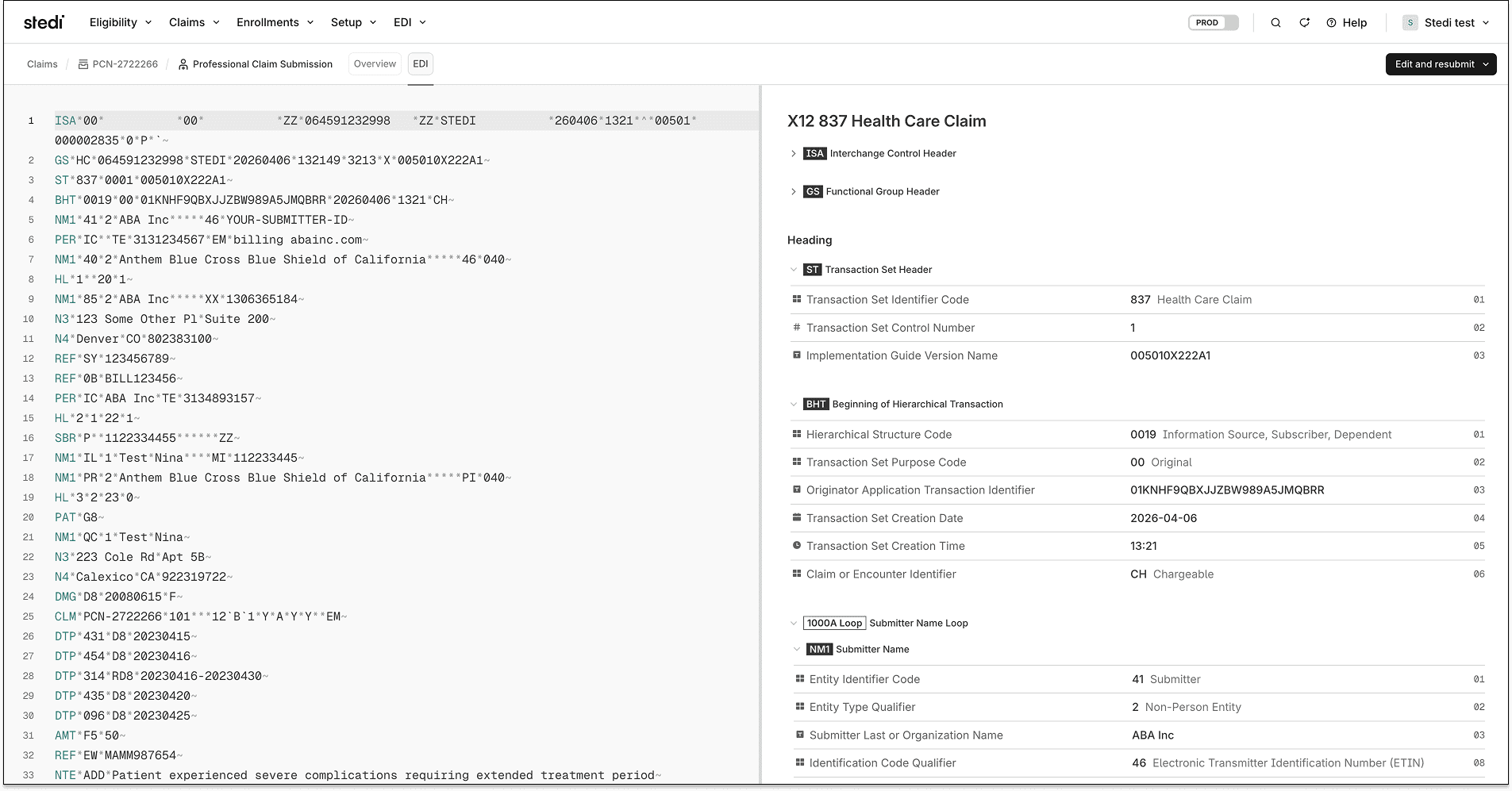
X12 EDI view

ERAs and real-time claim status checks

Timelines and statuses in the new claims view and detail views don’t yet include information from Electronic Remittance Advice (ERAs) or real-time claim status checks.

You can still view ERAs for adjudicated claims from the Transactions page and run real-time claim status checks using the Stedi portal's claim status form.

Availability and pricing

The new claims view is available for free on all Stedi plans, including our Basic plan.

You can sign up for our Basic plan for free. It includes 100 free claim submissions per month.

We’ve released a dedicated set of claims management features in the Stedi portal, including an improved claims view.

Claims view

Previously, the Stedi portal had a ‘flat’ transactions view for claims and acknowledgments. Transactions weren't filterable, and the list view didn’t include details such as the payer name/ID, patient control number, and billing provider information. You had to click into each transaction to see details of the claim or relationships between claims and acknowledgments.

The new claims view is built around the claim itself. You can see where each claim stands, review its history, and filter across your entire claims volume. Features include:

  • A filterable list of all claims submitted through Stedi

  • The ability to see the current status of a claim

  • A timeline for each claim showing 837 claim submissions and related 277CA claim acknowledgments

  • Detail pages for each claim submission and acknowledgment transaction

Filter claims

The claims view lets you filter claims you've submitted through Stedi. You can filter based on:

  • Status – where the claim is in the processing pipeline

  • Patient name with partial matching

  • Patient control number

  • Payer name, ID, or payer ID alias

  • Billing provider NPI or TIN

  • Total charges, including the minimum or maximum charge amount

  • Service date and processed date ranges

  • Claim type – professional, dental, or institutional

Claims view with filters

Claim processing status

Each claim displays its current processing status, based on 277CA claim acknowledgments.

Claim processing statuses

Statuses include:

  • Submitted – The claim was submitted to Stedi but hasn’t received a claim acknowledgment.

  • Received – Stedi or the payer has received the claim. The claim hasn’t been accepted or rejected yet.

  • Accepted – The claim has been accepted for adjudication by the payer.

  • Rejected – The claim was rejected by Stedi or the payer. You can review the claim acknowledgment to learn more about the error. Then correct and resubmit the claim.

For more, see how we determine status in our docs.

Claim processing timeline

Click any claim on the claims view to see a timeline of its processing activity. You can see when the claim was submitted and whether it was accepted or rejected by Stedi or the payer.

The timeline includes resubmissions and their associated acknowledgments, so you can trace the full history of a claim from the first submission onward.

Transaction details

From a claim's timeline view, you can click into individual transactions to see more detail. The page includes a summary of patient data, service dates, service line details, and more.

Transaction details

To correct and resubmit a claim, click into the claim submission. Then select Edit and resubmit. You can resubmit professional claims using our CMS-1500 claims form.

Edit and resubmit

277CA acknowledgment pages include applicable claim status category codes, claim status codes, entity identifier codes, and error messages.

277CA acknowledgment status codes

You can also view the raw X12 EDI for the transaction using the built-in EDI viewer.

X12 EDI view

ERAs and real-time claim status checks

Timelines and statuses in the new claims view and detail views don’t yet include information from Electronic Remittance Advice (ERAs) or real-time claim status checks.

You can still view ERAs for adjudicated claims from the Transactions page and run real-time claim status checks using the Stedi portal's claim status form.

Availability and pricing

The new claims view is available for free on all Stedi plans, including our Basic plan.

You can sign up for our Basic plan for free. It includes 100 free claim submissions per month.

Share

Twitter
LinkedIn

Get started with Stedi

Get started with Stedi

Automate healthcare transactions with developer-friendly APIs that support thousands of payers. Contact us to learn more and speak to the team.

Get updates on what’s new at Stedi

Get updates on what’s new at Stedi

Get updates on what’s new at Stedi

Get updates on what’s new at Stedi

Backed by

Stedi and the S design mark are registered trademarks of Stedi, Inc. All names, logos, and brands of third parties listed on our site are trademarks of their respective owners (including “X12”, which is a trademark of X12 Incorporated). Stedi, Inc. and its products and services are not endorsed by, sponsored by, or affiliated with these third parties. Our use of these names, logos, and brands is for identification purposes only, and does not imply any such endorsement, sponsorship, or affiliation.

Get updates on what’s new at Stedi

Backed by

Stedi and the S design mark are registered trademarks of Stedi, Inc. All names, logos, and brands of third parties listed on our site are trademarks of their respective owners (including “X12”, which is a trademark of X12 Incorporated). Stedi, Inc. and its products and services are not endorsed by, sponsored by, or affiliated with these third parties. Our use of these names, logos, and brands is for identification purposes only, and does not imply any such endorsement, sponsorship, or affiliation.

Get updates on what’s new at Stedi

Backed by

Stedi and the S design mark are registered trademarks of Stedi, Inc. All names, logos, and brands of third parties listed on our site are trademarks of their respective owners (including “X12”, which is a trademark of X12 Incorporated). Stedi, Inc. and its products and services are not endorsed by, sponsored by, or affiliated with these third parties. Our use of these names, logos, and brands is for identification purposes only, and does not imply any such endorsement, sponsorship, or affiliation.