Introducing PDF tasks for transaction enrollments
ERAs & transaction enrollment
You can now use Stedi's Transaction Enrollment API or the Stedi portal to download, complete, and upload PDF forms during transaction enrollment. Examples of these PDF forms include:
Legal agreements with the payer.
W-9 tax forms.
Bank forms required for EFT enrollment. Some payers require EFT enrollment for ERAs.
If you're building an EHR, RCM, or practice management platform, you can now surface PDF enrollment forms directly in your UI and collect the completed PDFs from providers.
When are PDF enrollment tasks required?
Where possible, Stedi handles transaction enrollment paperwork for you. In many cases, you only need to submit a transaction enrollment request – no other action is needed on your part.
Some payers require providers – and no one else – to complete specific steps to finish enrollment. If these steps require filling out a PDF form, you can now use the Transaction Enrollment API or the Stedi portal to complete them.
Using the Transaction Enrollment API
This release introduces the new provideFilledPdf enrollment task type.
When you retrieve an enrollment using the Retrieve Enrollment API or List Enrollments API endpoints, provideFilledPdf tasks may appear in the tasks array of enrollment records.
Each provideFilledPdf task contains:
A unique
idfor the task.A
rankfor the task – the order in which the task should be completed.The
responsiblePartyfor completing the task.An
isCompletestatus indicating whether the task is complete.instructionsfor filling out the PDF.A
documentDownloadUrlfor the PDF. This URL requires an API key for authentication.
An example object in an enrollment record’s tasks array:
{
  "id": "01937d50-9abc-7890-abcd-567890abcdef",
  "rank": 2,
  "responsibleParty": "PROVIDER",
  "isComplete": false,
  "definition": {
    "provideFilledPdf": {
      "instructions": "Please complete and sign the provider agreement.",
      "documentDownloadUrl": "https://enrollments.us.stedi.com/2024-09-01/documents/019375d0-9876-7890-abcd-567890fedcba/download"
    }
  }
}
{
  "id": "01937d50-9abc-7890-abcd-567890abcdef",
  "rank": 2,
  "responsibleParty": "PROVIDER",
  "isComplete": false,
  "definition": {
    "provideFilledPdf": {
      "instructions": "Please complete and sign the provider agreement.",
      "documentDownloadUrl": "https://enrollments.us.stedi.com/2024-09-01/documents/019375d0-9876-7890-abcd-567890fedcba/download"
    }
  }
}
{
  "id": "01937d50-9abc-7890-abcd-567890abcdef",
  "rank": 2,
  "responsibleParty": "PROVIDER",
  "isComplete": false,
  "definition": {
    "provideFilledPdf": {
      "instructions": "Please complete and sign the provider agreement.",
      "documentDownloadUrl": "https://enrollments.us.stedi.com/2024-09-01/documents/019375d0-9876-7890-abcd-567890fedcba/download"
    }
  }
}
How to complete a PDF task using the API
To complete a provideFilledPdf task using the Transaction Enrollment API, you’ll need the task’s id, instructions, and documentDownloadUrl. Follow these steps:
Make a GET request to the
documentDownloadUrl. Pass your production Stedi API key in theAuthorizationheader.curl -X GET "https://enrollments.us.stedi.com/2024-09-01/documents/{documentId}/download" \ -H "Authorization: <api_key>"
curl -X GET "https://enrollments.us.stedi.com/2024-09-01/documents/{documentId}/download" \
  -H "Authorization: <api_key>"
curl -X GET "https://enrollments.us.stedi.com/2024-09-01/documents/{documentId}/download" \
  -H "Authorization: <api_key>"
The response contains a pre-signed S3downloadUrl.{ "documentId": "019375d0-9876-7890-abcd-567890fedcba", "downloadUrl": "https://s3.amazonaws.com/enrollment-documents/...?X-Amz-Algorithm=AWS4-HMAC-SHA256&..." }
{
  "documentId": "019375d0-9876-7890-abcd-567890fedcba",
  "downloadUrl": "https://s3.amazonaws.com/enrollment-documents/...?X-Amz-Algorithm=AWS4-HMAC-SHA256&..."
}
{
  "documentId": "019375d0-9876-7890-abcd-567890fedcba",
  "downloadUrl": "https://s3.amazonaws.com/enrollment-documents/...?X-Amz-Algorithm=AWS4-HMAC-SHA256&..."
}
Download the PDF from the
downloadUrl.curl -o form.pdf "<downloadUrl>"
curl -o form.pdf "<downloadUrl>"
curl -o form.pdf "<downloadUrl>"
Complete the downloaded PDF form. Follow any instructions from the PDF and the task’s
instructionsfield. This step happens outside the API.Call the Upload Enrollment Document API endpoint. In the request body, provide:
The task’s ID in the
taskIdfield.A name for the completed PDF in the
namefield. Include the.pdffile extension in the name. Store thenamevalue. You’ll use it later.
curl -X POST "https://enrollments.us.stedi.com/2024-09-01/enrollments/{enrollmentId}/documents" \
  -H "Authorization: <api_key>" \
  -H "Content-Type: application/json" \
  -d '{
    "taskId": "<task_id>",
    "name": "completed-provider-agreement.pdf"
  }'
curl -X POST "https://enrollments.us.stedi.com/2024-09-01/enrollments/{enrollmentId}/documents" \
  -H "Authorization: <api_key>" \
  -H "Content-Type: application/json" \
  -d '{
    "taskId": "<task_id>",
    "name": "completed-provider-agreement.pdf"
  }'
curl -X POST "https://enrollments.us.stedi.com/2024-09-01/enrollments/{enrollmentId}/documents" \
  -H "Authorization: <api_key>" \
  -H "Content-Type: application/json" \
  -d '{
    "taskId": "<task_id>",
    "name": "completed-provider-agreement.pdf"
  }'
The response includes a
documentIdand pre-signeduploadUrl. The upload URL is valid for 24 hours.{ "enrollmentId": "01936f2a-5678-7890-abcd-1234567890ab", "documentId": "019375d0-1234-7890-abcd-567890abcdef", "uploadUrl": "https://s3.amazonaws.com/enrollment-documents/...?X-Amz-Algorithm=AWS4-HMAC-SHA256&..." }
{
  "enrollmentId": "01936f2a-5678-7890-abcd-1234567890ab",
  "documentId": "019375d0-1234-7890-abcd-567890abcdef",
  "uploadUrl": "https://s3.amazonaws.com/enrollment-documents/...?X-Amz-Algorithm=AWS4-HMAC-SHA256&..."
}
{
  "enrollmentId": "01936f2a-5678-7890-abcd-1234567890ab",
  "documentId": "019375d0-1234-7890-abcd-567890abcdef",
  "uploadUrl": "https://s3.amazonaws.com/enrollment-documents/...?X-Amz-Algorithm=AWS4-HMAC-SHA256&..."
}
Store the response’s
documentId. You’ll use it later.Use a
PUTrequest to upload the attachment file to theuploadUrl. The request must include aContent-Type: application/pdfheader.curl -X PUT "<uploadUrl>" \ -H "Content-Type: application/pdf" \ --upload-file /path/to/completed-provider-agreement.pdf
curl -X PUT "<uploadUrl>" \
  -H "Content-Type: application/pdf" \
  --upload-file /path/to/completed-provider-agreement.pdf
curl -X PUT "<uploadUrl>" \
  -H "Content-Type: application/pdf" \
  --upload-file /path/to/completed-provider-agreement.pdf
Use the Retrieve Enrollment API endpoint to poll the enrollment.
curl -X GET "https://enrollments.us.stedi.com/2024-09-01/enrollments/{enrollmentId}" \
  -H "Authorization: <api_key>"
curl -X GET "https://enrollments.us.stedi.com/2024-09-01/enrollments/{enrollmentId}" \
  -H "Authorization: <api_key>"
curl -X GET "https://enrollments.us.stedi.com/2024-09-01/enrollments/{enrollmentId}" \
  -H "Authorization: <api_key>"
The response contains the enrollment’s documents in the response’s
documentsarray. You can track thestatusof the document using thedocumentIdyou stored earlier.{ "documents": [ { "id": "019375d0-1234-7890-abcd-567890abcdef", // Document Id "status": "UPLOADED", ... } ] }
{
  "documents": [
    {
      "id": "019375d0-1234-7890-abcd-567890abcdef", // Document Id
      "status": "UPLOADED",
      ...
    }
  ]
}
{
  "documents": [
    {
      "id": "019375d0-1234-7890-abcd-567890abcdef", // Document Id
      "status": "UPLOADED",
      ...
    }
  ]
}
Immediately after upload, the document's
statuswill initially bePENDING. Wait until the status isUPLOADEDbefore continuing. This typically takes less than 10 seconds after upload.Mark the task complete using the Update Enrollment Task API endpoint. In the request body’s
responseDataobject, include:The document ID in the
documentIdfieldThe uploaded PDF’s name in the
namefield
curl -X POST "https://enrollments.us.stedi.com/2024-09-01/tasks/{taskId}" \
  -H "Authorization: <api_key>" \
  -H "Content-Type: application/json" \
  -d '{
    "completed": true,
    "responseData": {
      "documentId": "019375d0-1234-7890-abcd-567890abcdef",
      "name": "completed-provider-agreement.pdf"
    }
  }'
curl -X POST "https://enrollments.us.stedi.com/2024-09-01/tasks/{taskId}" \
  -H "Authorization: <api_key>" \
  -H "Content-Type: application/json" \
  -d '{
    "completed": true,
    "responseData": {
      "documentId": "019375d0-1234-7890-abcd-567890abcdef",
      "name": "completed-provider-agreement.pdf"
    }
  }'
curl -X POST "https://enrollments.us.stedi.com/2024-09-01/tasks/{taskId}" \
  -H "Authorization: <api_key>" \
  -H "Content-Type: application/json" \
  -d '{
    "completed": true,
    "responseData": {
      "documentId": "019375d0-1234-7890-abcd-567890abcdef",
      "name": "completed-provider-agreement.pdf"
    }
  }'
In the Stedi portal
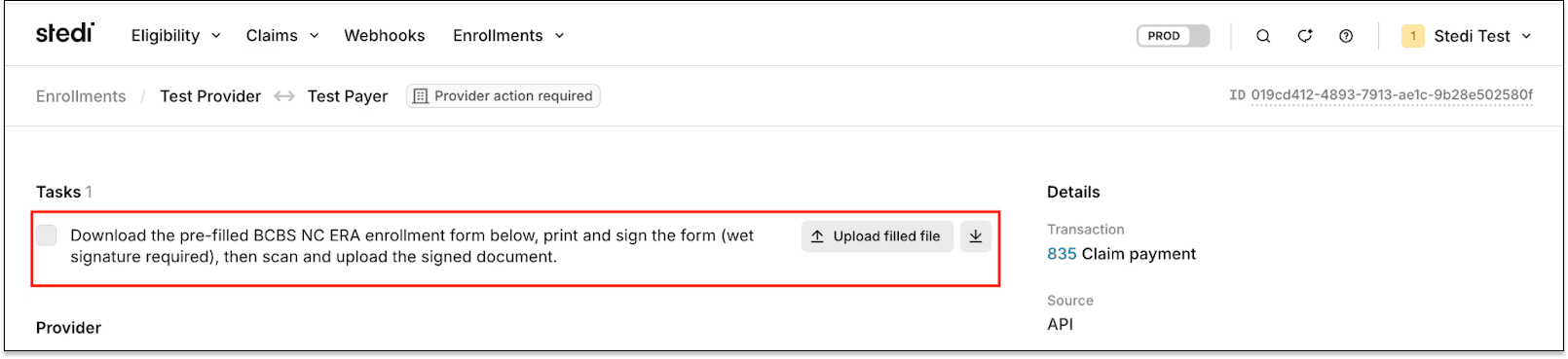
PDF-related tasks assigned to the provider appear in the Tasks section at the top of the enrollment request's details page in the Stedi portal.
You can download, complete, and upload the pre-filled PDFs from this section.
You can now use Stedi's Transaction Enrollment API or the Stedi portal to download, complete, and upload PDF forms during transaction enrollment. Examples of these PDF forms include:
Legal agreements with the payer.
W-9 tax forms.
Bank forms required for EFT enrollment. Some payers require EFT enrollment for ERAs.
If you're building an EHR, RCM, or practice management platform, you can now surface PDF enrollment forms directly in your UI and collect the completed PDFs from providers.
When are PDF enrollment tasks required?
Where possible, Stedi handles transaction enrollment paperwork for you. In many cases, you only need to submit a transaction enrollment request – no other action is needed on your part.
Some payers require providers – and no one else – to complete specific steps to finish enrollment. If these steps require filling out a PDF form, you can now use the Transaction Enrollment API or the Stedi portal to complete them.
Using the Transaction Enrollment API
This release introduces the new provideFilledPdf enrollment task type.
When you retrieve an enrollment using the Retrieve Enrollment API or List Enrollments API endpoints, provideFilledPdf tasks may appear in the tasks array of enrollment records.
Each provideFilledPdf task contains:
A unique
idfor the task.A
rankfor the task – the order in which the task should be completed.The
responsiblePartyfor completing the task.An
isCompletestatus indicating whether the task is complete.instructionsfor filling out the PDF.A
documentDownloadUrlfor the PDF. This URL requires an API key for authentication.
An example object in an enrollment record’s tasks array:
{
  "id": "01937d50-9abc-7890-abcd-567890abcdef",
  "rank": 2,
  "responsibleParty": "PROVIDER",
  "isComplete": false,
  "definition": {
    "provideFilledPdf": {
      "instructions": "Please complete and sign the provider agreement.",
      "documentDownloadUrl": "https://enrollments.us.stedi.com/2024-09-01/documents/019375d0-9876-7890-abcd-567890fedcba/download"
    }
  }
}
How to complete a PDF task using the API
To complete a provideFilledPdf task using the Transaction Enrollment API, you’ll need the task’s id, instructions, and documentDownloadUrl. Follow these steps:
Make a GET request to the
documentDownloadUrl. Pass your production Stedi API key in theAuthorizationheader.curl -X GET "https://enrollments.us.stedi.com/2024-09-01/documents/{documentId}/download" \ -H "Authorization: <api_key>"
The response contains a pre-signed S3downloadUrl.{ "documentId": "019375d0-9876-7890-abcd-567890fedcba", "downloadUrl": "https://s3.amazonaws.com/enrollment-documents/...?X-Amz-Algorithm=AWS4-HMAC-SHA256&..." }
Download the PDF from the
downloadUrl.curl -o form.pdf "<downloadUrl>"
Complete the downloaded PDF form. Follow any instructions from the PDF and the task’s
instructionsfield. This step happens outside the API.Call the Upload Enrollment Document API endpoint. In the request body, provide:
The task’s ID in the
taskIdfield.A name for the completed PDF in the
namefield. Include the.pdffile extension in the name. Store thenamevalue. You’ll use it later.
curl -X POST "https://enrollments.us.stedi.com/2024-09-01/enrollments/{enrollmentId}/documents" \
  -H "Authorization: <api_key>" \
  -H "Content-Type: application/json" \
  -d '{
    "taskId": "<task_id>",
    "name": "completed-provider-agreement.pdf"
  }'
The response includes a
documentIdand pre-signeduploadUrl. The upload URL is valid for 24 hours.{ "enrollmentId": "01936f2a-5678-7890-abcd-1234567890ab", "documentId": "019375d0-1234-7890-abcd-567890abcdef", "uploadUrl": "https://s3.amazonaws.com/enrollment-documents/...?X-Amz-Algorithm=AWS4-HMAC-SHA256&..." }
Store the response’s
documentId. You’ll use it later.Use a
PUTrequest to upload the attachment file to theuploadUrl. The request must include aContent-Type: application/pdfheader.curl -X PUT "<uploadUrl>" \ -H "Content-Type: application/pdf" \ --upload-file /path/to/completed-provider-agreement.pdf
Use the Retrieve Enrollment API endpoint to poll the enrollment.
curl -X GET "https://enrollments.us.stedi.com/2024-09-01/enrollments/{enrollmentId}" \
  -H "Authorization: <api_key>"
The response contains the enrollment’s documents in the response’s
documentsarray. You can track thestatusof the document using thedocumentIdyou stored earlier.{ "documents": [ { "id": "019375d0-1234-7890-abcd-567890abcdef", // Document Id "status": "UPLOADED", ... } ] }
Immediately after upload, the document's
statuswill initially bePENDING. Wait until the status isUPLOADEDbefore continuing. This typically takes less than 10 seconds after upload.Mark the task complete using the Update Enrollment Task API endpoint. In the request body’s
responseDataobject, include:The document ID in the
documentIdfieldThe uploaded PDF’s name in the
namefield
curl -X POST "https://enrollments.us.stedi.com/2024-09-01/tasks/{taskId}" \
  -H "Authorization: <api_key>" \
  -H "Content-Type: application/json" \
  -d '{
    "completed": true,
    "responseData": {
      "documentId": "019375d0-1234-7890-abcd-567890abcdef",
      "name": "completed-provider-agreement.pdf"
    }
  }'
In the Stedi portal
PDF-related tasks assigned to the provider appear in the Tasks section at the top of the enrollment request's details page in the Stedi portal.
You can download, complete, and upload the pre-filled PDFs from this section.
Get started with Stedi
Get started with Stedi
Start free with a sandbox account. Upgrade to production when you're ready. There are no monthly minimums or setup fees. You only pay for the transactions you use. See our pricing.
Get updates on what’s new at Stedi
Get updates on what’s new at Stedi
Get updates on what’s new at Stedi
Product
Developers
Resources
Get updates on what’s new at Stedi

Backed by
Stedi and the S design mark are registered trademarks of Stedi, Inc. All names, logos, and brands of third parties listed on our site are trademarks of their respective owners (including “X12”, which is a trademark of X12 Incorporated). Stedi, Inc. and its products and services are not endorsed by, sponsored by, or affiliated with these third parties. Our use of these names, logos, and brands is for identification purposes only, and does not imply any such endorsement, sponsorship, or affiliation.
Product
Developers
Resources
Get updates on what’s new at Stedi
Backed by
Stedi and the S design mark are registered trademarks of Stedi, Inc. All names, logos, and brands of third parties listed on our site are trademarks of their respective owners (including “X12”, which is a trademark of X12 Incorporated). Stedi, Inc. and its products and services are not endorsed by, sponsored by, or affiliated with these third parties. Our use of these names, logos, and brands is for identification purposes only, and does not imply any such endorsement, sponsorship, or affiliation.
Product
Developers
Resources
Get updates on what’s new at Stedi
Backed by
Stedi and the S design mark are registered trademarks of Stedi, Inc. All names, logos, and brands of third parties listed on our site are trademarks of their respective owners (including “X12”, which is a trademark of X12 Incorporated). Stedi, Inc. and its products and services are not endorsed by, sponsored by, or affiliated with these third parties. Our use of these names, logos, and brands is for identification purposes only, and does not imply any such endorsement, sponsorship, or affiliation.