

Manage enrollment requests
You'll get notifications each time a transaction enrollment request status changes or there is new information for you to review. You can also track and manage enrollment requests from within your Stedi account.
Monitor enrollment status
You can track the status of your transaction enrollment requests from the Enrollments page in your account.
Click an enrollment request to view its details, including:
- The provider and payer associated with the enrollment.
- The transaction types included in the enrollment.
- The current status of the enrollment.
- Any notes or instructions from Stedi or the payer.
- The history of status changes and actions taken on the enrollment.
- Enrollment documents, such as signed PDF forms.
Enrollment statuses
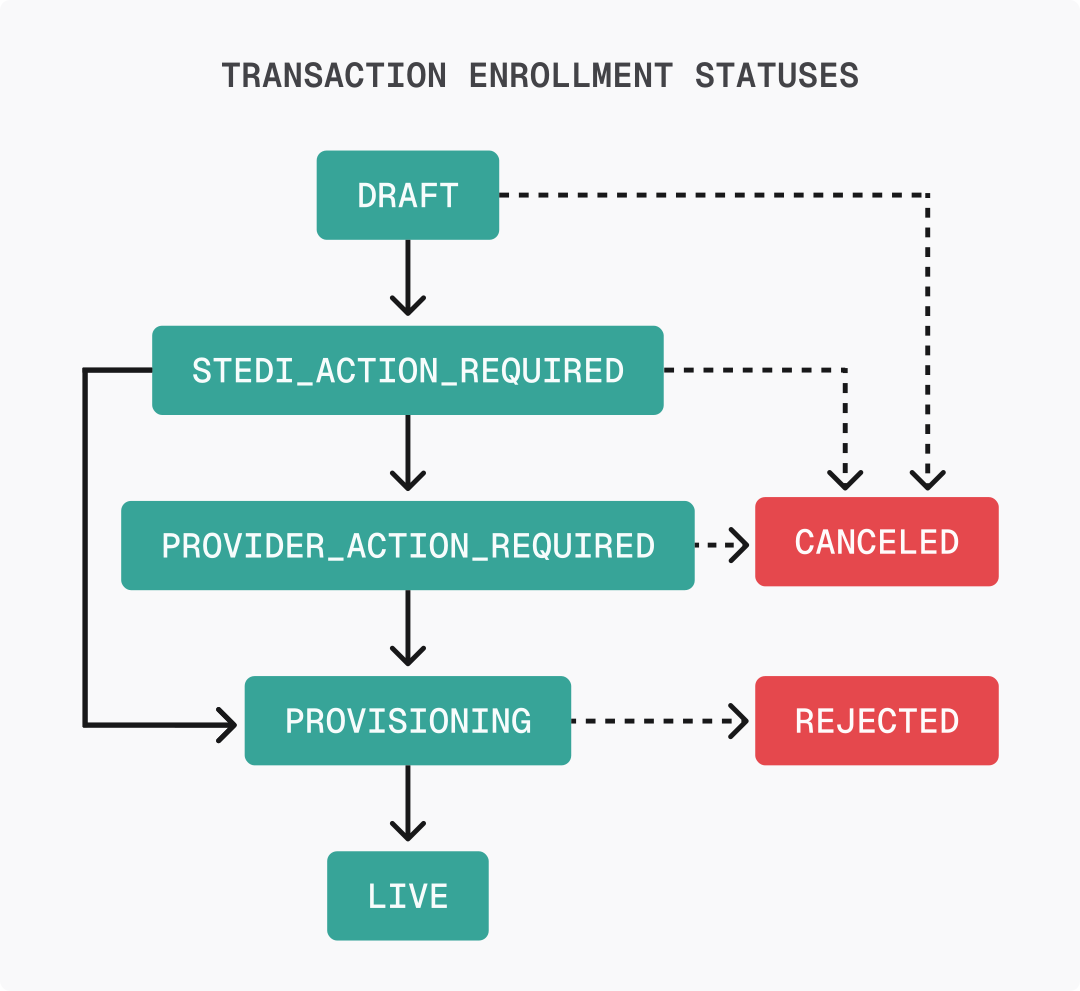
An enrollment request can have one of the following statuses:
| Status | Description |
|---|---|
| DRAFT | You are still editing the record and it has not been submitted to Stedi. |
| STEDI_ACTION_REQUIRED | You have submitted the enrollment and it is ready for Stedi to begin processing. |
| PROVIDER_ACTION_REQUIRED | The enrollment requires action from the healthcare provider to proceed, such as providing additional documentation. Stedi will add a note to your enrollment request with clear instructions. |
| PROVISIONING | Stedi has begun the process of completing the enrollment with the payer. |
| LIVE | The enrollment process is complete, and the specified provider can begin exchanging the listed transaction types with the payer. |
| REJECTED | The payer rejected the enrollment. Common reasons for rejection include incorrect details in the request and that the provider is not credentialed with the payer. Customer support will contact you with reasons for rejection and next steps. |
| CANCELED | The enrollment has been terminated per customer or provider request. You can only cancel enrollments that are in DRAFT, STEDI_ACTION_REQUIRED, or PROVIDER_ACTION_REQUIRED status. |
Notifications
Stedi sends in-app notifications and emails when a transaction enrollment request changes status to PROVISIONING, PROVIDER ACTION REQUIRED, LIVE, or REJECTED. You can manage your notification preferences to control which notifications you receive.
- In-app notifications: You'll receive an in-app notifications for these status changes. Each notification includes links to the associated enrollment requests where you can review required tasks, notes, and other details.
- Email notifications: Once an hour, Stedi checks for enrollment request status changes. If there are updates, Stedi sends a batched notification email with a summary of all enrollment request updates.
Stedi sends notifications to the address designated as the Stedi contact person for the enrollment. This is typically the email associated with the Stedi account that created the enrollment request, and it may differ from the provider's designated contact.
If you aren't receiving notifications for enrollment request updates, contact Stedi support through our Contact us form or your designated Slack or Teams channel.
Rejected enrollments
In rare cases, the enrollment status might be set to REJECTED if the payer denies the enrollment request. Rejection can happen for many reasons, but the most common are:
- You aren't credentialed with the payer. If a payer rejects your transaction enrollment request with a message indicating the provider is "not on file" or "not recognized," it likely means you haven't completed credentialing and payer enrollment with that payer. You'll need to contact the payer and complete their credentialing process before you can successfully enroll for transactions through Stedi.
- There was incorrect data in the enrollment submission.
If an enrollment is rejected, Stedi puts a note on the enrollment request explaining the reason and how to resolve it. Contact Stedi support with any additional questions.
Manage enrollment tasks
Tasks are actions that either the provider or Stedi need to complete to move the enrollment process forward.
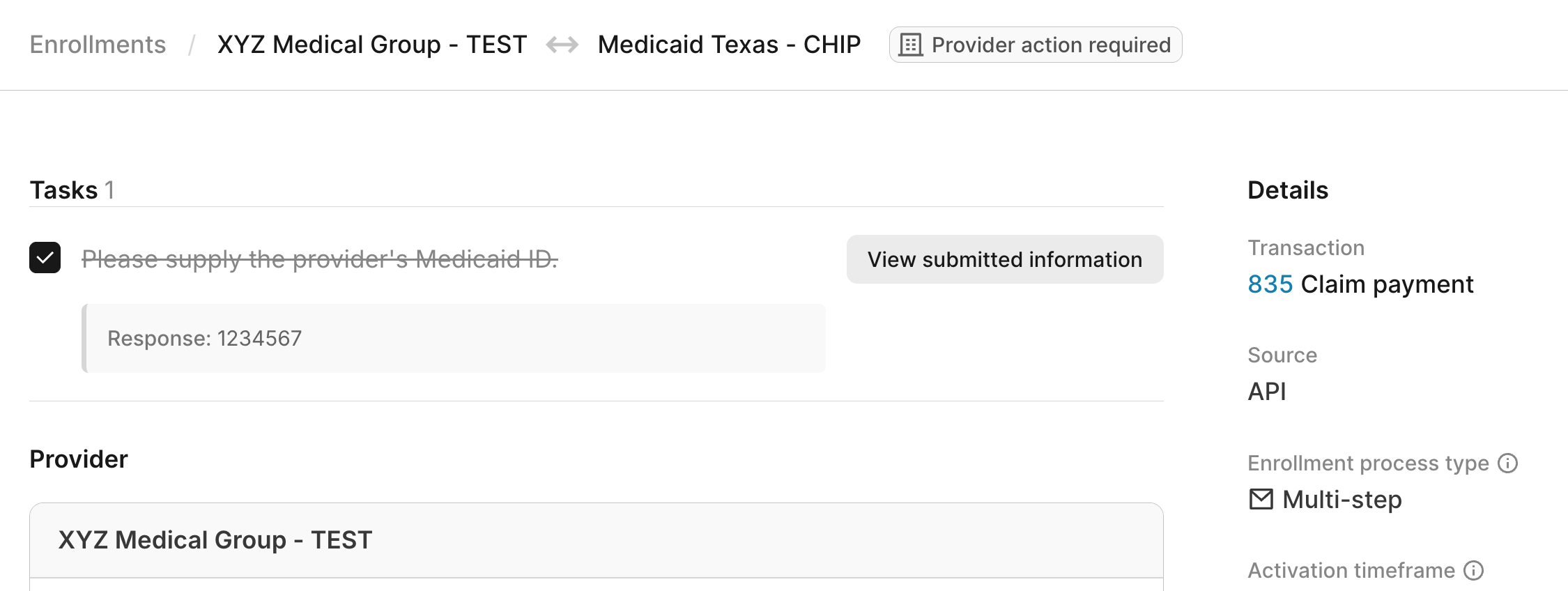
When there's a new task that requires you to take action, Stedi adds a task to the enrollment request with instructions and sets the enrollment status to Provider Action Required. You'll receive a notification that there's a new task to complete.
Stedi is automatically notified when you complete a task, and the enrollment process continues.
Task types
Tasks fall into three categories:
- Follow instructions: Complete a specific action, such as logging into a payer portal or contacting a department. The task includes instructions explaining what to do.
- Provide information: Supply specific information or confirmation to Stedi. The task describes what information is needed.
- Provide documentation: Upload PDF documentation related to the enrollment.
When a task requires documentation, Stedi may ask you to:
- Complete a template: Stedi provides a PDF template for you to download, fill out, and upload back to Stedi.
- Upload supporting documentation: Stedi asks you to provide a document you already have, such as a W-9 form or voided check.
Complete tasks
You can review and manage tasks at the top of the enrollment request's details page in the Stedi portal. You must have the Operator role or above to complete enrollment tasks.
Once you've taken the required action, check the box next to the task to mark it as complete. Stedi is automatically notified when you complete a task, and the enrollment process continues.
Manage enrollment documents
You can upload documents through tasks Stedi assigns on the enrollment request. Stedi may also upload documentation throughout the enrollment process. You can review, download, or delete these documents as needed. Documents associated with an enrollment may include:
- Completed enrollment forms
- W-9 tax forms
- Voided checks
- Other documentation that Stedi completes and submits to the payer
To review, download, or delete documents associated with an enrollment request:
- Go to the Enrollments page and click the enrollment request.
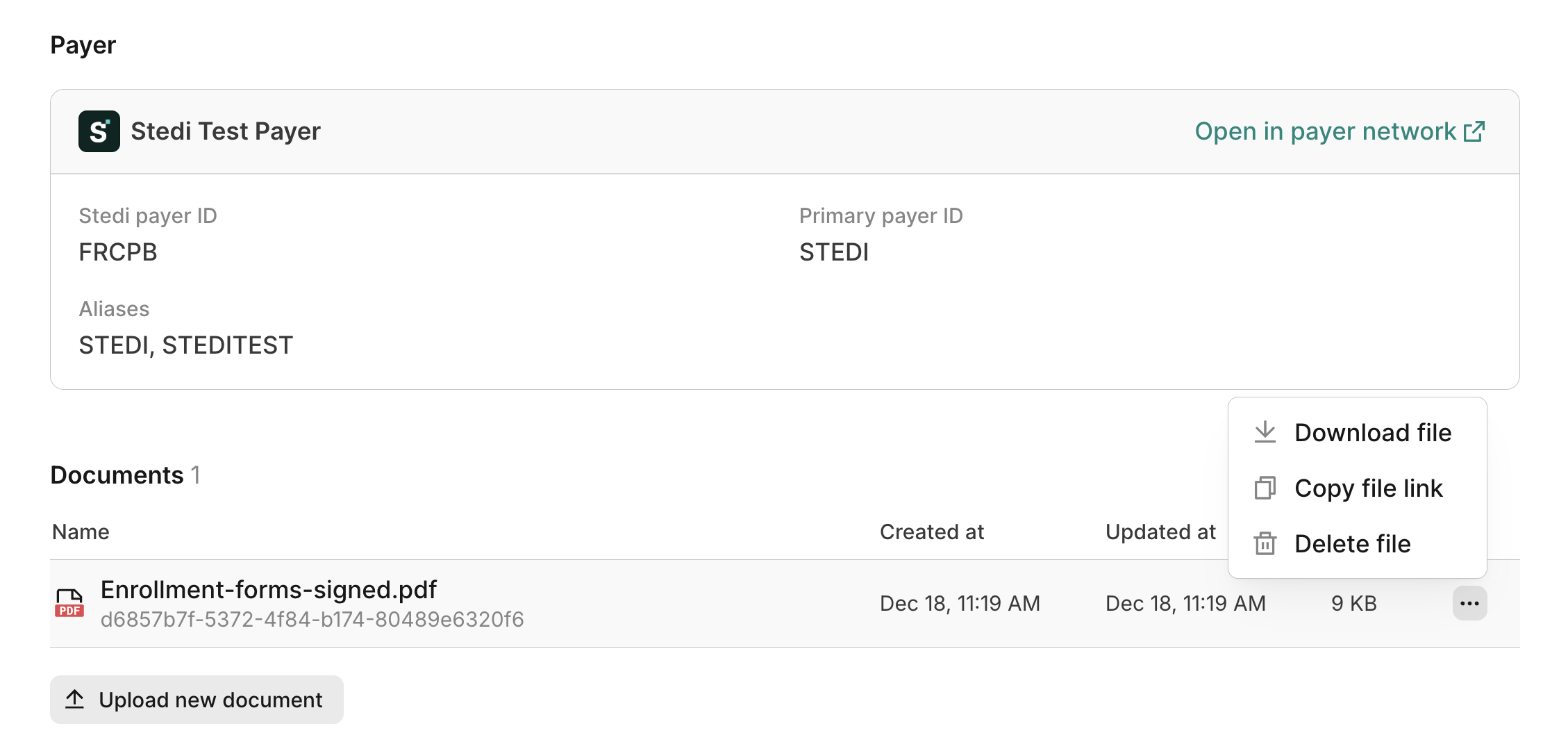
- Scroll to the Documents section at the bottom of the page.
In the Documents section, click any document to view it in your web browser. You can also click ... (ellipses) to the right of the document to:
- Download the original PDF file.
- Copy a secure link to view the file, which you can share with any member of your Stedi account.
- Delete the file, if necessary.
Cancel enrollments
You can only cancel enrollment requests that are in DRAFT, STEDI_ACTION_REQUIRED, or PROVIDER_ACTION_REQUIRED status. To cancel, reach out to Stedi support through our Contact us form or your designated Slack or Teams channel. Once an enrollment is canceled, Stedi sets its status to CANCELED and stops the enrollment process with the payer.
We can't cancel enrollments that are in PROVISIONING or LIVE status. Once an enrollment is in one of these statuses, the only way to stop 835 ERAs from coming to Stedi is to submit an enrollment through another clearinghouse.
Transaction Enrollments Hub
Our network and enrollment operations team knows the nuances of each payer's enrollment requirements and maintains a public repository of payers that require additional transaction enrollment steps through our Transaction Enrollments Hub.
However, you don't need to keep track of these requirements. We'll contact you directly if there are additional steps you need to take to complete enrollment with a specific payer.