

Enrollment tasks and PDF documents
After you submit an enrollment request, you may need to complete tasks to move the enrollment forward. Some tasks require you to upload documentation, such as completed forms or tax documents.
Stedi is automatically notified when you complete a task, and the enrollment process continues.
Task types
Stedi uses structured task definitions to collect information from providers during enrollment. The API reflects each task type in the tasks[].definition property.
Stedi uses a flexible task definition (manualTask) to collect information for enrollment tasks. Each task can have:
- An
instructionsproperty that describes what actions the provider must take to move the enrollment forward. - A
fieldsarray with objects describing discrete pieces of information required to complete the task. Whenfieldsare present, you must supply a value for everyfieldto complete the task. Thefieldsarray may be empty if the task only requires following instructions - for example, following steps within a payer's portal. - A
linksarray (optional) with helpful resources related to the task, such as payer portal URLs or reference documentation.
Manual tasks can contain:
| Field Type | Description |
|---|---|
| No fields | The provider must follow the directions in the task's instructions property. For example, the task may require logging into a payer portal or contacting a department. |
TEXT | The provider must supply specific pieces of information required to complete the enrollment, such as their bank account information or other identifiers. |
DOCUMENT | The provider must upload PDF documentation required to complete the enrollment. |
| Mixed | Combines text and document requirements in one task. For example, a task may require uploading PDF documentation and supplying a bank account number. |
For example, the following manualTask requests the provider's Medicaid ID and a signed agreement.
{
  "definition": {
    "manualTask": {
      "instructions": "Please provide your Medicaid Provider Identifier and upload the signed provider agreement.",
      "fields": [
        {
          "key": "MEDICAID_ID",
          "label": "Medicaid Provider Identifier",
          "fieldType": "TEXT"
        },
        {
          "key": "SIGNED_AGREEMENT",
          "label": "Signed Provider Agreement",
          "fieldType": "DOCUMENT"
        }
      ],
      "links": [
        {
          "label": "Download Provider Agreement Template",
          "url": "https://example.com/documents/provider-agreement.pdf"
        }
      ]
    }
  }
}
Manage tasks
When there's a new task that requires the provider to take action, Stedi adds a task to the enrollment request with instructions and sets the enrollment status to Provider Action Required. The email address listed as the Stedi contact person also receives a notification that there's a new task to complete.
You can complete tasks through the Stedi portal or programmatically through the API.
UI
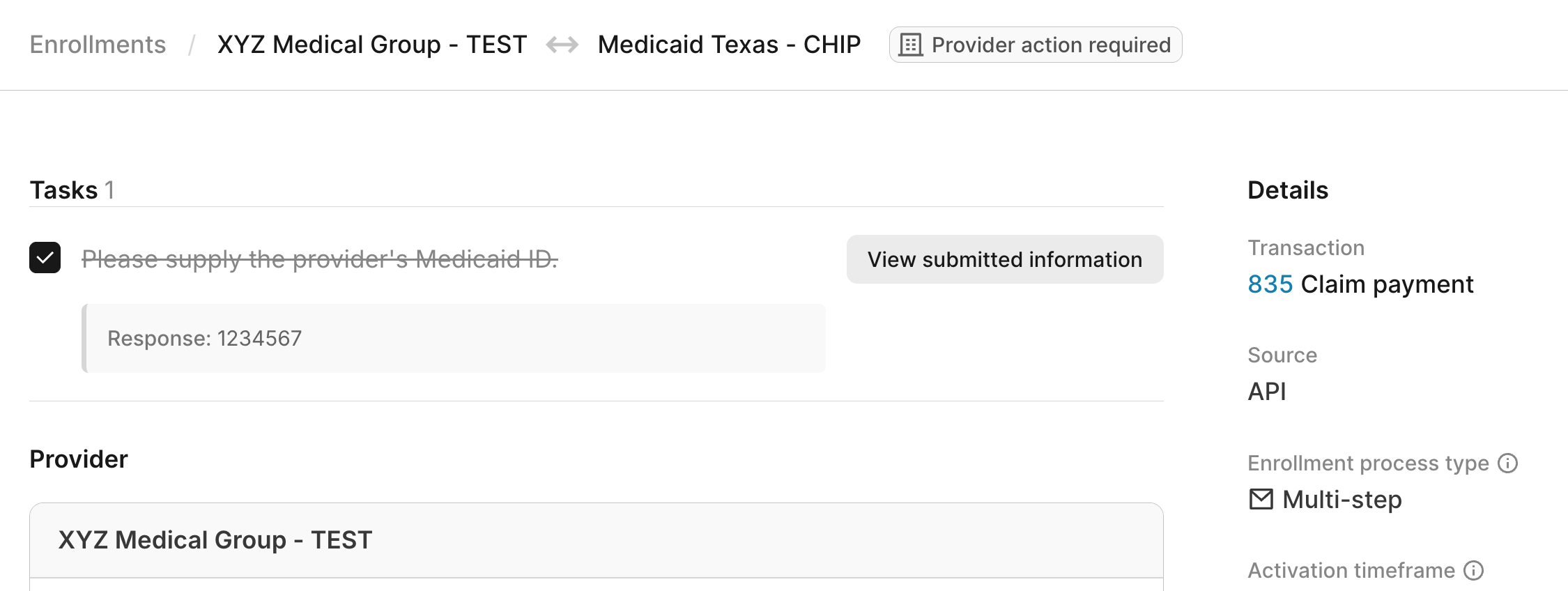
You can review and manage tasks at the top of the enrollment request's details page in the Stedi portal. You must have the Operator role or higher to complete enrollment tasks.
If the task requires documentation, the instructions specify what you need to provide. Some tasks include a PDF template to download, complete, and upload to Stedi. Other tasks may ask you to upload a document you already have, such as a W-9 form.
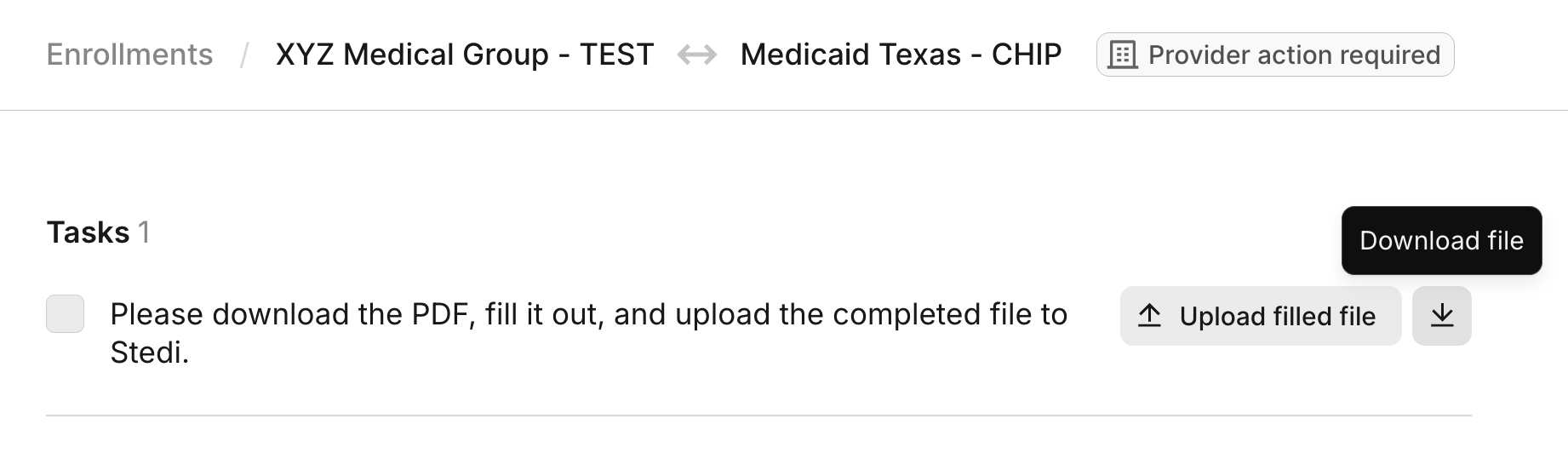
Once you've taken the required action, check the box next to the task to mark it as complete.
API
You may want to streamline your providers' workflows by allowing them to complete required enrollment tasks within your application. You can do this by integrating with Stedi's Enrollments API.
Tasks use a structured format with defined fields. The workflow to complete them varies based on the contents of the fields array.
Retrieve open tasks
When Stedi adds a new task, the enrollment status changes to Provider Action Required and Stedi emits an enrollment.task.assigned event. You can retrieve new tasks in two ways:
| Method | Description |
|---|---|
| Polling |
|
| Event destinations |
|
Complete tasks in rank order
You must complete tasks in order of their rank property. For example, you can't complete a task with rank 2 if there's an uncompleted task on the enrollment record with rank 1. If you try to complete a task out of order, the Update Enrollment Task endpoint returns an HTTP 400 error.
Ranks apply to every task on the enrollment, including internal tasks that Stedi owns. Retrieve Enrollment, List Enrollments, and the Stedi portal return only the tasks assigned to you, so there can be outstanding tasks that aren't visible.
If you receive a 400 error when completing a task, check the error message for the party responsible for the blocking task. For example, the following error shows that Stedi has an outstanding task to finish before you can complete yours:
{
  "message": "Cannot complete task 6f1c2b7e-3d4a-4e8b-9c5f-2a7d8e1b4c90 with responsibleParty = PROVIDER. A lower-ranked STEDI task must be completed first.",
  "fieldList": [
    {
      "path": "completed",
      "message": "A lower-ranked STEDI task must be completed first."
    }
  ]
}
When more than one task blocks completion, the message names the party responsible for the lowest-ranked one, such as Multiple lower-ranked tasks must be completed first, starting with a STEDI task.
Once you know the blocking party, take the following action:
PROVIDER: Check the enrollment for a lower-ranked task withresponsiblePartyset toPROVIDER. Complete the lowest-ranked one, then retry the request.STEDI: Wait for the enrollment'sstatusto change toPROVIDER_ACTION_REQUIRED, then retry the request. Stedi has a lower-ranked task on the enrollment, and you can't complete any of your tasks until Stedi resolves the blocking task.
Follow instructions (no fields)
Use the following steps to complete tasks with an empty fields[] array:
Call the Retrieve Enrollment endpoint to get the task details.
Follow the instructions in the definition.manualTask.instructions property.
Call the Update Enrollment Task endpoint with completed: true.
Provide information (TEXT fields)
Use the following steps to complete tasks with TEXT fields:
Call the Retrieve Enrollment endpoint to get the task details.
Review the definition.manualTask.fields[] array to understand what information is required. Each field definition has the following properties:
key: The identifier you'll use when submitting values. Keys must be in SCREAMING_SNAKE_CASE format, such asMEDICAID_IDorENROLLMENT_FORM.label: User-friendly field name.description(optional): Additional context about the field.fieldType: Set toTEXTfor text input.
Gather the text values needed for each field from the provider.
Call the Update Enrollment Task endpoint a values array containing an object for each field. Each value object include the field's key and a value object containing the required text.
PDF upload (DOCUMENT fields)
Use the following steps to complete tasks with DOCUMENT fields:
Call the Retrieve Enrollment endpoint to get the task details.
Review the task details:
-
definition.manualTask.links[]: Check if these are Stedi download URLs.- Stedi download URLs start with
https://enrollments.us.stedi.com/and require authentication. You can use these to download a PDF template from Stedi for the required documentation. - External links point to resources outside Stedi (such as payer websites or reference documentation).
- Stedi download URLs start with
-
definition.manualTask.fields[]: Required document fields, each with akeyandlabel.
When a task requires downloading a form and reuploading the completed PDF, the task includes a links array with a URL to download the template.
If no links array is present, check the instructions property for details about what supporting documentation (such as the provider's W-9 form) is required. Then, skip to step 4 to upload that documentation.
To download a template:
-
Make an authenticated
GETrequest to the URL inlinks[].url. This returns a pre-signed download URL.The pre-signed URL expires after 24 hours. If the URL expires before you download the PDF, call the endpoint again to get a new one.
-
Make a
GETrequest to the returneddownloadUrlto retrieve the PDF template.
Skip this step if uploading existing documentation.
The provider should complete the PDF template according to the instructions in definition.manualTask.instructions and the field's description property.
Upload the required PDF documentation to the enrollment request. This is either a completed enrollment PDF template or supporting documentation (such as a W-9) that Stedi requested.
-
Call the Upload Enrollment Document endpoint with the enrollment ID and task ID.
Stedi returns a pre-signed URL in the
uploadUrlproperty you can use to upload the completed PDF to the enrollment request. The URL expires after 24 hours. If it expires, call the endpoint again to get a new one.You should also save the
documentIdreturned in the response. You'll use it later to poll for the document's status and when completing the task. -
Make a
PUTrequest to theuploadUrlto upload the completed PDF to Stedi. The request must include theContent-Type: application/pdfheader. Only PDF documents are currently supported.
You must wait for the document's status to change from PENDING to UPLOADED before marking the associated task as complete. This typically takes less than 10 seconds.
You can poll the Retrieve Enrollment endpoint to check the status of the uploaded document. When the status is UPLOADED, the document has been successfully received and processed by Stedi.
Our TypeScript example shows how you might poll.
Once the document status is UPLOADED, call the Update Enrollment Task endpoint to mark the task as complete. Your payload must include a values array with one object per field. Each object should contain:
- The field's
key - A
valueobject. The object must contain adocumentproperty with thedocumentIdStedi returned when you uploaded the PDF.
Mixed field types
Manual tasks can combine TEXT and DOCUMENT fields in a single task. For example, a task may require uploading PDF documentation and supplying a bank account number.
To complete a task with mixed fields:
- Collect the required text values from the provider.
- Follow the DOCUMENT field workflow to upload required PDF documentation to Stedi.
- Submit all values together in the
values[]array and mark the task as complete.
Review and download documents
You can upload documents through tasks Stedi assigns on the enrollment request. Stedi may also upload documentation throughout the enrollment process. You can review, download, or delete these documents as needed. Documents associated with an enrollment may include:
- Completed enrollment forms
- W-9 tax forms
- Voided checks
- Other documentation that Stedi completes and submits to the payer
UI
To review, download, or delete documents associated with an enrollment request:
- Go to the Enrollments page and click the enrollment request.
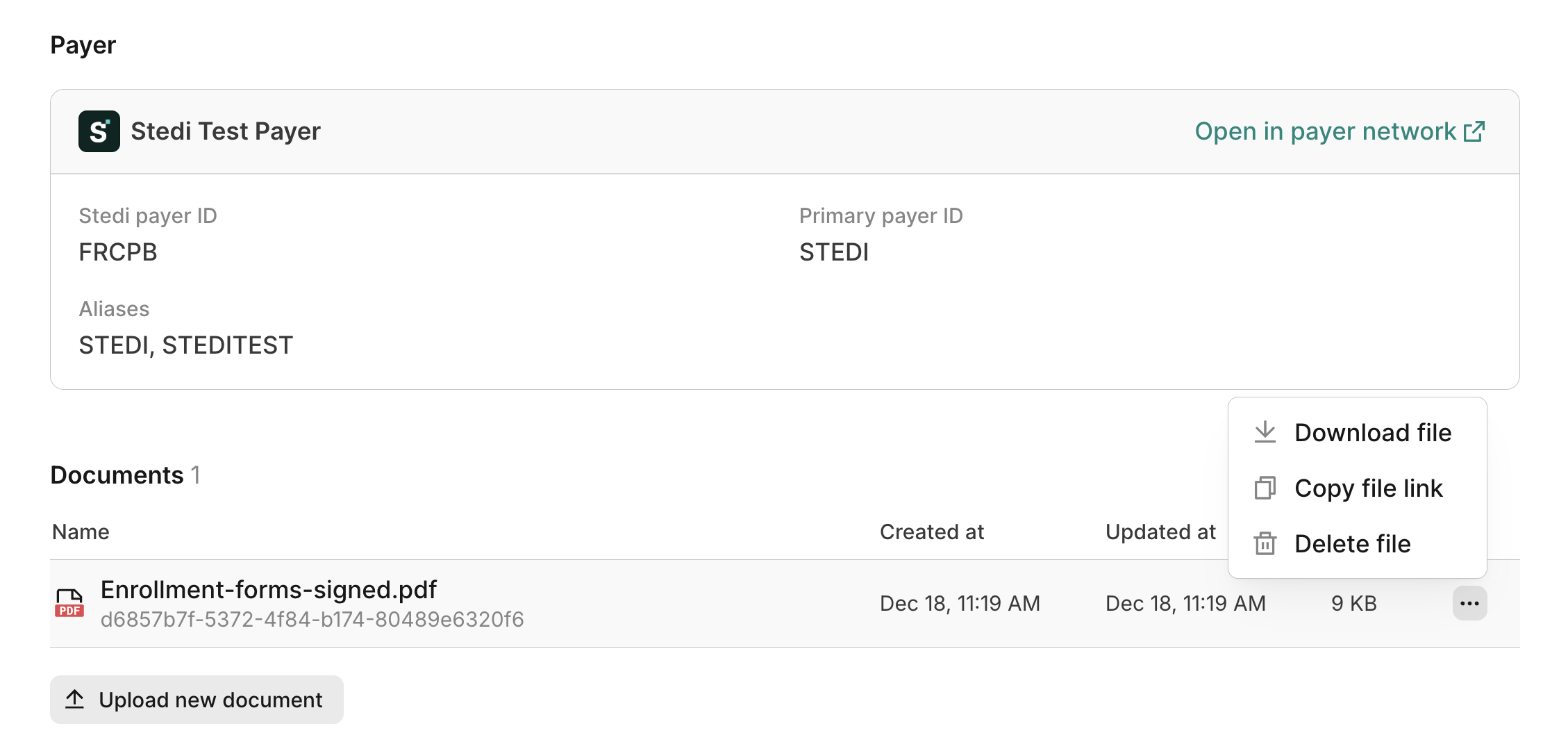
- Scroll to the Documents section at the bottom of the page.
In the Documents section, click any document to view it in your web browser. You can also click ... (ellipses) to the right of the document to:
- Download the original PDF file.
- Copy a secure link to view the file, which you can share with any member of your Stedi account.
- Delete the file, if necessary.
API
You can use the following API endpoints to manage documents on an enrollment request programmatically:
- Upload Enrollment Document: Get a pre-signed URL to upload a PDF document related to a task. This endpoint requires a
taskId- you can use it for tasks with DOCUMENT fields. - Download Enrollment Document: Get a pre-signed URL to download a specific PDF document related to an enrollment request.
- Delete Enrollment Document: Delete a specific PDF document related to an enrollment request.