

Eligibility views
You can track eligibility checks in the Stedi portal. Click Checks in the side navigation to go to the checks view.
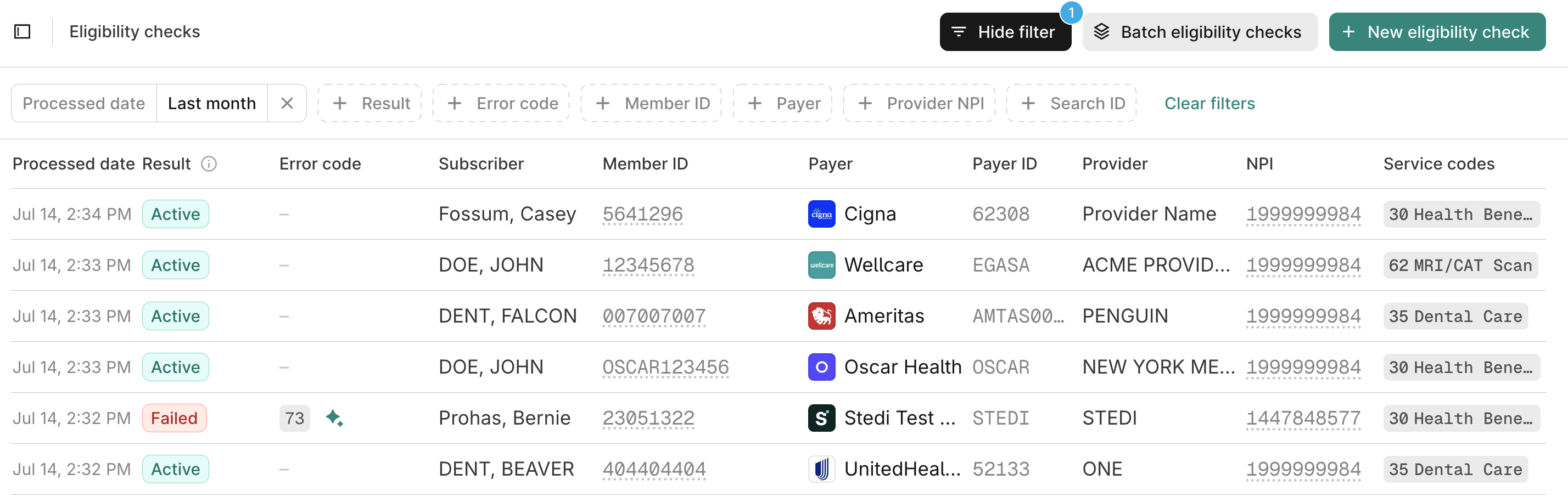
The checks view shows individual eligibility check attempts. Every attempt appears as a separate row. If you retry a check, the retry appears as its own row.
Checks view
The checks view shows individual eligibility check attempts. For example, if you submit a check for patient Jane Doe that initially fails and then retry to get successful results, the initial attempt and the retry appear as separate checks in the list.
You can use the checks view to:
- Check the status of individual eligibility check attempts. For example, you may want to reference the results of an eligibility check that you ran earlier in the day.
- Identify patterns in check failures. For example, if you filter by a specific payer and find that checks for all patients within the last hour have failed, the payer may have an outage.
The checks view sorts eligibility checks by Processed date, with the most recent checks appearing first.
Filter
You can filter eligibility checks by the following criteria:
| Filter | Description |
|---|---|
| Processed date | A date range for when Stedi processed the eligibility check. |
| Results | By the check result status (Active, Inactive, Investigate, or Failed). |
| Member ID | By the patient's member ID. |
| Payer | By a Payer ID or alias in the Payer Network or a payer's business name (such as Cigna). |
| Provider NPI | By the National Provider Identifier (NPI) of the requesting provider. |
| Error code | By the AAA code returned by the payer. For example, 42 errors indicate a connectivity issue. |
| Search ID | By the ID of the eligibility search containing the check. |
Check result
Each eligibility check can have one of the following results:
| Status | Description |
|---|---|
| Active | The payer's response contains an active eligibility and benefit type. |
| Inactive | The payer's response doesn't contain an active eligibility and benefit type. |
| Investigate | The payer returned an unexpected eligibility or benefit type code. Review the response and contact the payer if you have questions. |
| Failed | The payer returned an error code in the response. Review the error code and retry the eligibility check. |
Check details
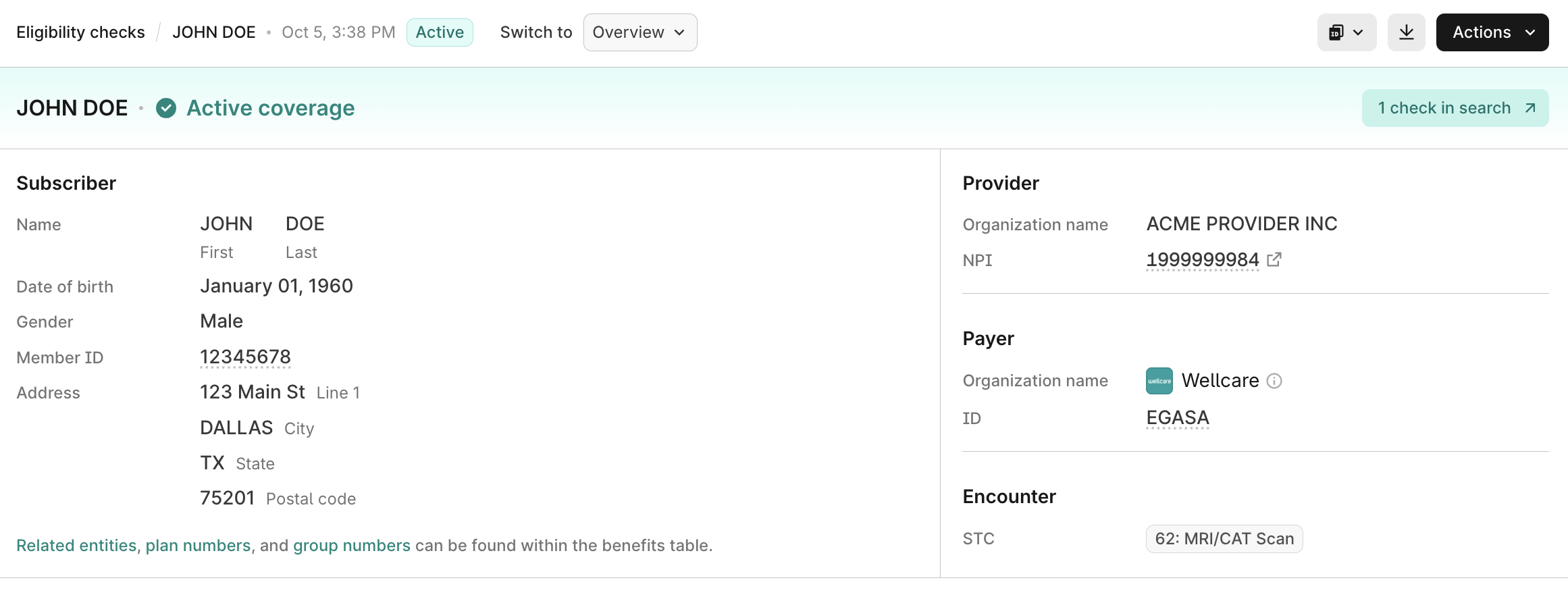
Click any check to view its details, including the check overview, benefits information (if present), and raw request and response data.
Eligibility search
An eligibility search is a container for all retry attempts of a particular eligibility check. When you submit an eligibility check through any method, Stedi creates a new eligibility search record. Every time you retry that eligibility check, Stedi stores the retry details within the existing eligibility search. This creates a clear timeline of troubleshooting efforts for failed requests.
You can view the eligibility search for any check to track the full retry history. For example, you can see all troubleshooting attempts made to resolve a failed check for patient Jane Doe and review what changed for each attempt.
From an individual eligibility check's detail page, click View search to open the search. If the search contains multiple checks, the button shows the count of related checks.
Search details
When you click View search from a check detail page, you can view the search overview and a complete history of all check attempts.
From the search detail page, you can view all individual checks within the search to see the progression of retry attempts. Click any check to see its full details, including benefits information (if present), and the raw request and response data.
Search result
The highest-priority check among all checks in the search determines the result of an eligibility search. Stedi uses the following priority order: Active → Inactive → Investigate → Failed. If multiple checks share the same priority result, the most recent check determines the search result.
Example: A search contains three sequential checks: first a Failed check, then an Active check, and finally another Failed check. The search result is Active because Active has the highest priority, even though it's not the most recent check.
This priority logic also applies to all search-level data displayed in the eligibility search details, including patient information, payer details, service type codes, and error metadata. All of this data comes from the highest-priority check, not necessarily the most recent check.
An eligibility search can have one of the following results:
| Status | Description |
|---|---|
| Active | The payer's response contains an active eligibility and benefit type. |
| Inactive | The payer's response doesn't contain an active eligibility and benefit type. |
| Investigate | The payer returned an unexpected eligibility or benefit type code. Review the response and contact the payer if you have questions. |
| Failed | The payer returned an error code in the response. Review the error code and retry the eligibility check. |